Question 1
You have a database that includes field named sales, City and Region.
You have the following chart that shows the number of sales made in different cities.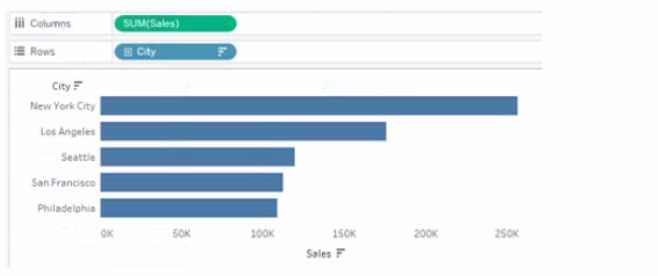
You want to dynamically show the corresponding region when users hover their mouse over any of
the bars.
What should you do?
- A. Right-click a in the chat, select Annotate and then select Mark.
- B. Right-click a bar in the chart select Mark Label and then select Always show.
- C. Edit the aliases for City.
- D. Drag Region to Tooltip on the Marks card
Answer:
D
Explanation:
To show the corresponding region when users hover their mouse over any of the bars, you need to
drag Region to Tooltip on the Marks card. This will add Region as a field in the tooltip text that
appears when users hover over a mark. You can also customize the tooltip text by editing it in the
Tooltip dialog box. Reference: https://help.tableau.com/current/pro/desktop/en-
us/buildmanual_shelves.htm
https://help.tableau.com/current/pro/desktop/en-
us/formatting_tooltips.htm
Comments
Question 2
You want to connect a Tableau workbook to a dataset in a Microsoft Excel spreadsheet.
What should you do from Tableau Desktop?
- A. From the Data menu select New Data Source
- B. From the Data menu select Replace Data Source
- C. From the File menu select Import Workbook
- D. From the File menu select New
Answer:
A
Explanation:
To connect a Tableau workbook to a dataset in a Microsoft Excel spreadsheet, you need to select New
Data Source from the Data menu. This will open the Connect pane, where you can choose Microsoft
Excel as your data source and browse for your spreadsheet file. You can then drag and drop your
sheets or tables to join or union them in the data source page. Reference:
https://help.tableau.com/current/pro/desktop/en-us/connect_basic.htm
https://help.tableau.com/current/pro/desktop/en-us/connect_excel.htm
Comments
Question 3
You plan to create a visualization that has a dual axis chart. The dual axis chart will contain a shape
chart and a line chart will use the same measure named Population on the axis.
You need to configure be shapes to be much larger than the line.
What should you do?
- A. Duplicate Population Drag the duplicate to the second Marks card and configure the see of the marks independently
- B. Create a custom shape that is larger than the default shape and add the shape to the Shapes folder in My Repository
- C. For the second axis select Shape on the Marks card From Select Shape Palette select Custom and then select Reset
- D. Change Population to a discrete dimension
Answer:
A
Explanation:
To configure the shapes to be much larger than the line, you need to duplicate Population and drag it
to the second Marks card. This will create a dual axis chart with two measures on one axis. You can
then select Shape on one Marks card and Line on another Marks card, and adjust the size of each
mark independently using the Size slider or menu. Reference:
https://help.tableau.com/current/pro/desktop/en-us/multiplemeasures_dualaxes.htm
https://help.tableau.com/current/pro/desktop/en-us/marks_markproperties_size.htm
Comments
Question 4
You have a dashboard that contains confidential information about patients health. The data needs
to always be up to date tor a team of healthcare workers How should you share me dashboard with
the healthcare workers?
- A. Publish the dashboard to Tableau Public
- B. Print the dashboard to PDF
- C. Publish aw dashboard to Tableau Server
- D. Export the dashboard as a .twbx
Answer:
C
Explanation:
To share a dashboard that contains confidential information about patients health and needs to
always be up to date for a team of healthcare workers, you should publish it to Tableau Server. This
will allow you to control who can access and interact with your dashboard, as well as schedule
automatic refreshes of your data source or extract. Publishing to Tableau Public would expose your
data to anyone on the internet, printing to PDF would not update your data, and exporting as a .twbx
would require sending a large file that might not be compatible with other versions of Tableau.
Reference: https://help.tableau.com/current/pro/desktop/en-us/publish_workbooks_share.htm
https://help.tableau.com/current/pro/desktop/en-us/publish_workbooks_tableauserver.htm
Comments
Question 5
You have the following dataset.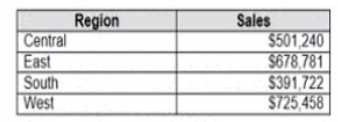
Which Level of Detail (LOD) expression should you use to calculate tie grand total of all the regions?
- A. {FIXED: [Region] SUM Sales}
- B. {FIXED: SUM Sales}
- C. {Fixed: [Region]: TOTAL Sales}
- D. {FIXED: TOTAL (Sales)}
Answer:
D
Explanation:
To calculate the grand total of all the regions, you need to use a Level of Detail (LOD) expression that
ignores any dimensions in the view and returns the total sum of sales. The FIXED keyword allows you
to specify the level of detail for the calculation, and the TOTAL function returns the sum of all values
in the expression. Therefore, the correct LOD expression is {FIXED: TOTAL (Sales)}. Reference:
https://help.tableau.com/current/pro/desktop/en-us/calculations_calculatedfields_lod.htm
https://help.tableau.com/current/pro/desktop/en-
us/functions_functions_tablecalculation.htm#TOTAL
Comments
Question 6
You have the following data source in tableau Server.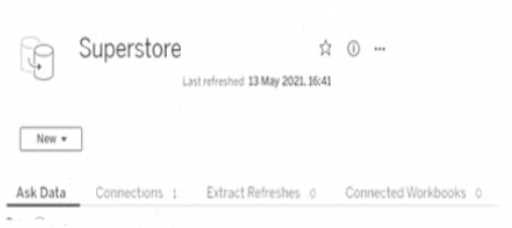
You need to ensure that the data is updated every hour.
What should you select?
- A. New
- B. Extract Refreshes
- C. Connected Workbooks
- D. Connections
Answer:
B
Explanation:
To ensure that the data is updated every hour, you need to select Extract Refreshes from the data
source menu on Tableau Server. This will allow you to add a new extract refresh schedule or edit an
existing one. You can specify the frequency and time of the refresh, as well as any custom options or
credentials. New will create a new data source, Connected Workbooks will show you which
workbooks use this data source, and Connections will show you which tables or files are connected
to this data source. Reference: https://help.tableau.com/current/server/en-us/refresh_extracts.htm
https://help.tableau.com/current/server/en-us/refresh_extracts_add.htm
Comments
Question 7
You have a line chart on a worksheet.
You want to add a comment to March 2020 as shown in the following visualization.
What should you do?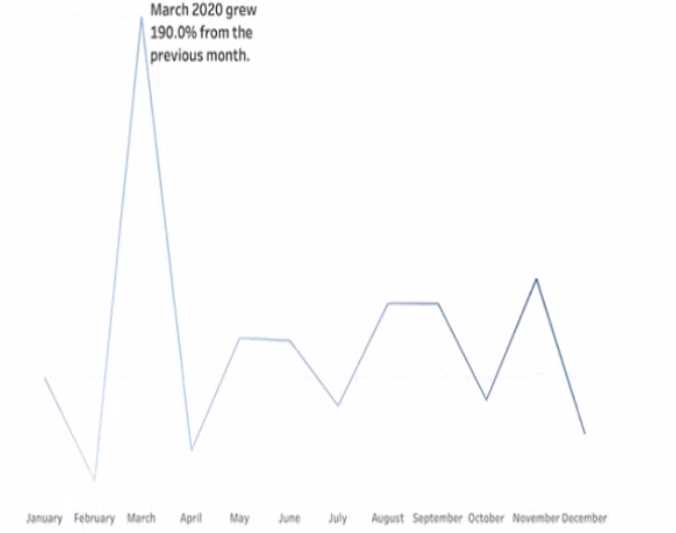
- A. Drag the growth rate to Text on the Marks card
- B. Enable captions
- C. Annotate March 2020
- D. Add a tooltip
Answer:
C
Explanation:
To add a comment to March 2020 on a line chart, you need to annotate that mark. You can right-click
on the mark and select Annotate > Mark from the menu. This will open a dialog box where you can
type your comment and format it as you like. You can also drag and drop the annotation to position it
on the worksheet. Dragging the growth rate to Text on the Marks card will add a label to every mark
on the line chart, enabling captions will show a description of the worksheet at the bottom, and
adding a tooltip will show a text box when users hover over a mark. Reference:
https://help.tableau.com/current/pro/desktop/en-us/formatting_annotations.htm
https://help.tableau.com/current/pro/desktop/en-us/formatting_annotations_create.htm
Comments
Question 8
You want to add a comment to March 2020 as shown in the following visualization.
You have the following sets in a Tableau workbook
• Top N Customers
• Customers of 2020
• Top N Products
• Sellers of 2020
Which two sets can you combine? Choose two
- A. Sellers of 2020
- B. Customers of 2020
- C. Top N Products
- D. Top N Customers
Answer:
BD
Explanation:
To combine two sets, they must have at least one dimension in common. In this case, Customers of
2020 and Top N Customers both have Customer Name as a dimension, so they can be combined
using set operations such as union, intersection, or difference. Sellers of 2020 and Top N Products
have different dimensions (Seller Name and Product Name), so they cannot be combined. Reference:
https://help.tableau.com/current/pro/desktop/en-us/sets.htm
https://help.tableau.com/current/pro/desktop/en-us/sets_create.htm#combine-sets
Comments
Question 9
DRAG DROP
You company has two divisions located in the United States and Germany Bach division has a
separate database. The following is a sample of the sales data for the division in the United States.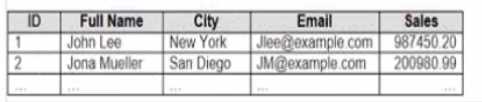
The following is a sample of the sales data for me division in Germany.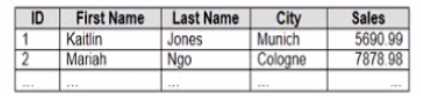
You have population data in a file named Populatio.csv. the following is a sample of the data.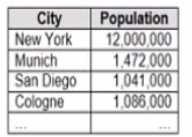
You plan to create a visualization that ml show tie sales per capita for each salesperson Each
salesperson must be identified by identified by their full name.
You need to prepare the data to support the planned visualization. The data source must support
being published .
Which four actions should you perform in order?
(Place the four correct options n order Use the arrows to move Options to Answer Area arrows to re-
order the options.
Use Answer Area arrows to re-order the options)
Answer:
None
Explanation:
The correct order of the four actions is:
Open Tableau Prep
Create a new column to concatenate the name for the Germany division
Union the sales data of both divisions
Join the sales data and the population data by using Country as the join field
The first action is to open Tableau Prep, which is a tool that allows you to prepare and shape your
data for analysis. You can connect to various data sources, clean and transform your data, and output
it to Tableau Desktop or Tableau Server.
The second action is to union the sales data of both divisions, which means appending them
together. This will create a single table that contains all the rows from both tables, with null values
for any missing fields. You can use the Union step in Tableau Prep to drag and drop your tables and
create a union.
The third action is to create a new column to concatenate the name for the Germany division, which
means combining the first name and last name into one field. This will make it consistent with the
name field in the United States division, and allow you to identify each salesperson by their full
name. You can use the Clean step in Tableau Prep to create a calculated field that uses the CONCAT
function to join the two fields.
The fourth action is to join the sales data and the population data by using Country as the join field,
which is a common field between them. This will add the population data for each country to the
sales data, which is needed to calculate the sales per capita. You can use the Join step in Tableau Prep
to drag and drop your tables and choose the join type and fields.
Reference: https://help.tableau.com/current/prep/en-us/prep_get_started.htm
https://help.tableau.com/current/prep/en-us/prep_union.htm
https://help.tableau.com/current/prep/en-us/prep_clean.htm
https://help.tableau.com/current/prep/en-us/prep_join.htm
Comments
Question 10
DRAG DROP
You have the following dataset.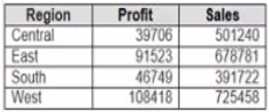
You need to create the following worksheet.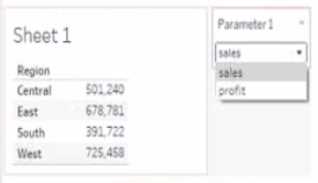
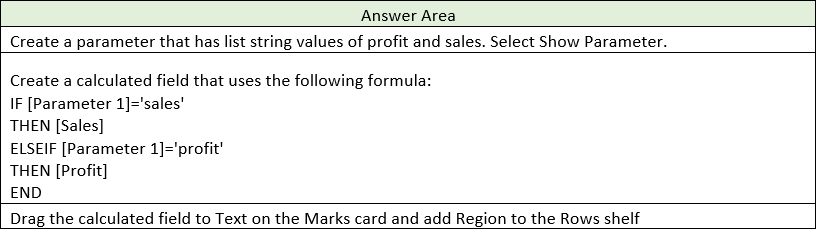
The table must show either profit or sales based on the selection from the Parameter 1 menu.
Which three actions should you perform in orders
(Place the three correct options in order Use the arrows to move Options lo Answer Area Use Answer
Area arrows to reorder the options)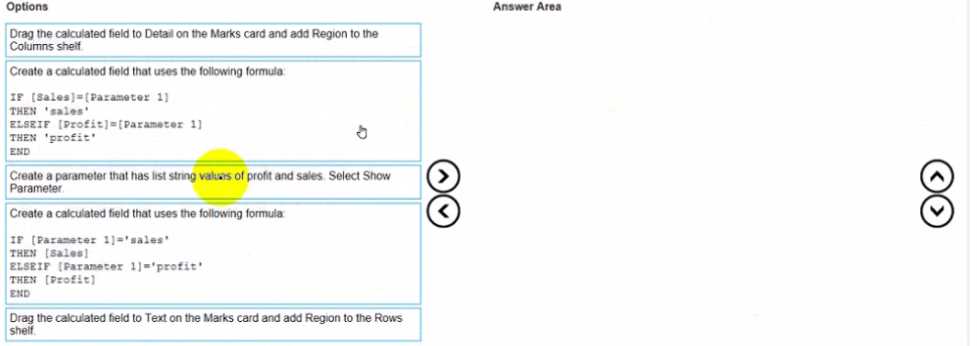
Answer:
None
Explanation: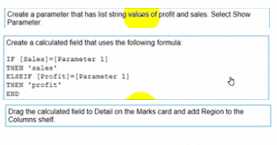
Topic 2, Section 2
Comments
Page 1 out of 11
Viewing questions 1-10 out of 120
page 2