Question 1 Topic 3, Case Study 3Case Study Question View Case
You need to implement the change requested by the operations manager.
Which control should you use?
- A. Camera
- B. Shape
- C. Add picture
- D. Image
Answer:
D
Explanation:
Scenario: The operations manager asks that the time tracking app display the employees photo once they have scanned
their badge.
Image control in Power Apps is a control that shows an image from, for example, a local file or a data source.
Incorrect Answers:
C: Add Picture: With this control users can take photos or upload image files from their device and update the data source
with this content. On a mobile device the user is presented with the device's choice dialog to choose between taking a photo
or selecting one already available.
This control is a grouped control containing two controls: an Image and an Add picture button. The Image control shows the
uploaded image or a placeholder if no image has been uploaded. The Add picture button prompts for an image to be
uploaded.
Note: If you add one or more Image controls to your app, you can show individual images that aren't part of a data set, or
you can incorporate images from records in data sources.
Reference: https://docs.microsoft.com/en-us/powerapps/maker/canvas-apps/controls/control-image
Comments
Question 2 Topic 3, Case Study 3Case Study Question View Case
HOTSPOT
You need to meet the requirement for the time tracking app.
Which controls should you use? To answer, select the appropriate options in the answer area.
NOTE: Each correct selection is worth one point.
Hot Area: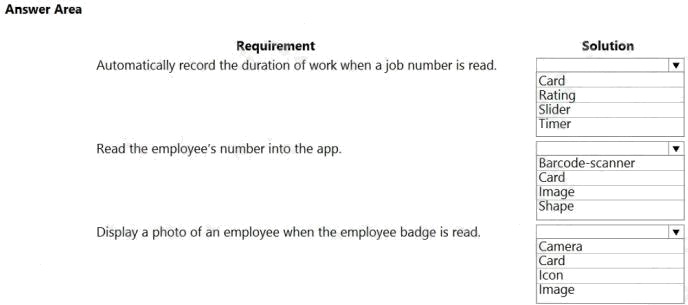
Answer:
Explanation:
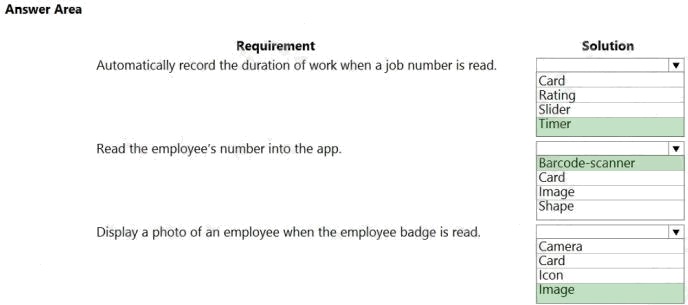
Box 1: Timer
A Timer control in Power Apps is a control that can determine how your app responds after a certain amount of time passes.
Box 2: Barcode scanner
The Barcode scanner control for canvas apps scans barcodes, QR codes, and data-matrix codes on an Android or iOS
device.
Box 3: Image
Image control in Power Apps is a control that shows an image from, for example, a local file or a data source.
If you add one or more Image controls to your app, you can show individual images that aren't part of a data set, or you can
incorporate images from records in data sources.
Reference: https://docs.microsoft.com/en-us/powerapps/maker/canvas-apps/controls/control-new-barcode-scanner
https://docs.microsoft.com/en-us/powerapps/maker/canvas-apps/controls/control-image
Comments
Question 3 Topic 3, Case Study 3Case Study Question View Case
HOTSPOT
You need to configure the system to meet the requirements.
What should you use? To answer, select the appropriate options in the answer area.
NOTE: Each correct selection is worth one point.
Hot Area: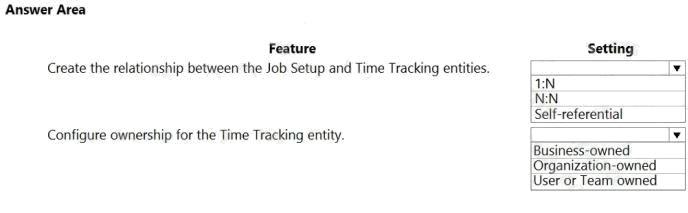
Answer:
Explanation:
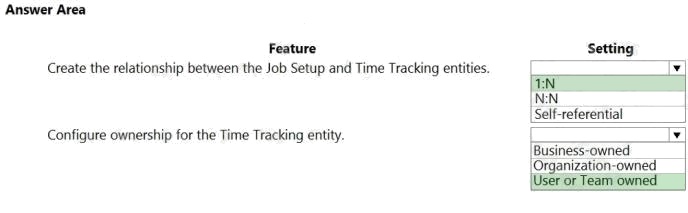
Box 1: 1:N
Scenario: A sortable listing of all in-process jobs from the Job Setup table, by customer, start date, and product.
Box 2: User or Team owned
Scenario: Employees must only be able to access their own time tracking records from the app.
User or team: Data belongs to a user or a team. Actions that can be performed on these records can be controlled on a user
level.
Reference: https://docs.microsoft.com/en-us/powerapps/maker/common-data-service/types-of-entities
Comments
Question 4 Topic 3, Case Study 3Case Study Question View Case
You need to implement logic in the app for lost sales.
What should you do?
- A. Set the probabilities field to zero percent.
- B. Define a business rule for the Sales Log edit form.
- C. Enable field security on the Won/Lost field.
- D. Create a formula for the Description field that uses the Update function.
Answer:
B
Explanation:
Scenario: Requests for quotes are currently stored in a Sales Log workbook. The workbook includes the following
information:
Status of the Request for Quote (RFQ) with the values of Won, Lost, No Bid, and Cancelled
Salespeople often do not set status of RFQs in the Sales Log to Won when a sale is closed and the customer purchase
order is received.
You can create business rules and recommendations to apply logic and validations without writing code or creating plug-ins.
Business rules provide a simple interface to implement and maintain fastchanging and commonly used rules.
Business rules defined for an entity apply to both canvas apps and model-driven apps if the entity is used in the app.
Reference: https://docs.microsoft.com/en-us/powerapps/maker/common-data-service/data-platform-create-business-rule
Comments
Question 5 Topic 3, Case Study 3Case Study Question View Case
HOTSPOT
You need to configure the system to meet the sales requirements.
What should you do? To answer, select the appropriate options in the answer area.
NOTE: Each correct selection is worth one point.
Hot Area: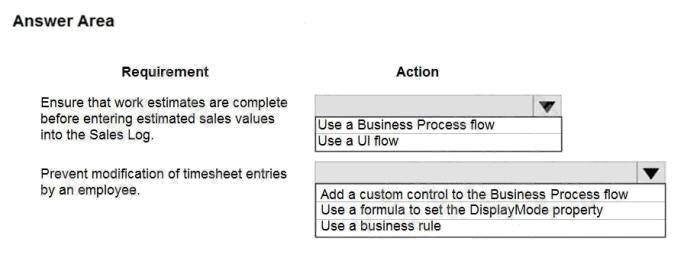
Answer:
Explanation:
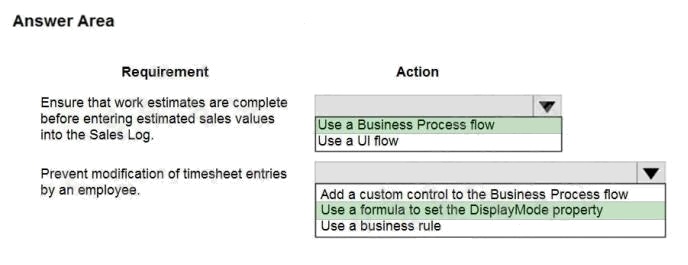
Box 1: Use a Business Process flow
Scenario: The Sales Log app must enforce process standards related to the completion of estimates and supporting
materials needed during the sales lifecycle.
Box 2: Use a formula to set the DisplayMode property
DisplayMode - The mode to use for data cards and controls within the form control.
Derived from the Mode property based and cannot be set independently: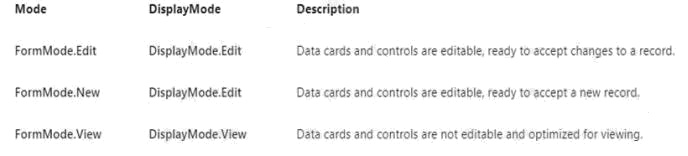
Reference:
https://docs.microsoft.com/en-us/powerapps/maker/canvas-apps/controls/control-form-detail
Create solutions
Comments
Question 6 Topic 4, Case Study 4Case Study Question View Case
HOTSPOT
You need to configure the app to meet the requirements.
Which object properties should you configure? To answer, select the appropriate options in the answer area.
NOTE: Each correct selection is worth one point.
Hot Area: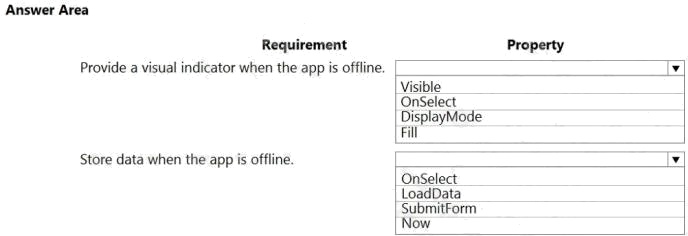
Answer:
Explanation:
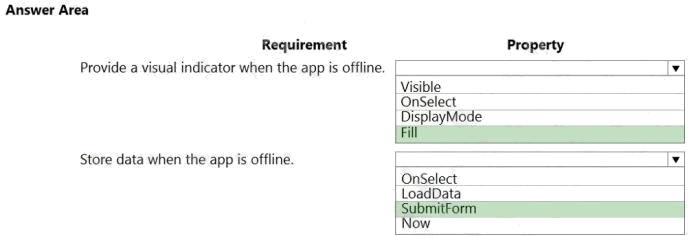
Box 1: Fill
Scenario: You must display a visual indicator in the app so that sales representatives know whether the app is offline before
submitting reports.
Fill The background color of a control.
Incorrect Answers:
DisplayMode - The mode to use for data cards and controls within the form control.
Box 2: SubmitForm
Scenario: When data is submitted offline, the data must be stored in the app until the app is back online.
Use the SubmitForm function in the OnSelect property of a Button control to save any changes in a Form control to the data
source.
Reference: https://docs.microsoft.com/en-us/powerapps/maker/canvas-apps/controls/control-screen
https://docs.microsoft.com/en-us/powerapps/maker/canvas-apps/functions/function-form Analyze and visualize data
Comments
Question 7 Topic 4, Case Study 4Case Study Question View Case
You need to meet the requirements for sales representative that submit status reports.
How should you configure the flow?
- A. Add a parallel branch that uses the value of a dynamic content variable
- B. Add a number functions action that evaluates the risk value by using a static variable to determine if an email is required
- C. Add a condition that evaluates the risk value by using a dynamic content variable
- D. Add a data operation action that evaluates a dynamic content variable
Answer:
C
Explanation:
Salespeople often do not set status of RFQs in the Sales Log to Won when a sale is closed and the customer purchase
order is received.
Include a dashboard that shows all currently active quotes, their status in the sales cycle, the probability of closing, and
estimated manufacturing and installation dates, by customer, product division, status, and salesperson.
Comments
Question 8 Topic 4, Case Study 4Case Study Question View Case
HOTSPOT
You need to roll back the mobile app to an earlier version.
What should you do? To answer, select the appropriate options in the answer area.
NOTE: Each correct selection is worth one point.
Hot Area: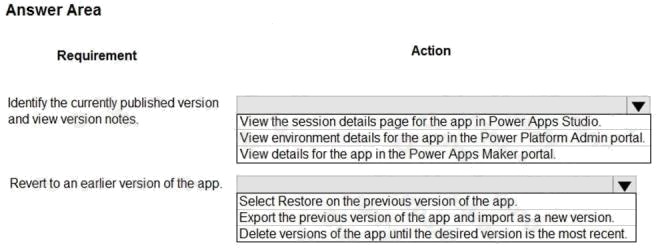
Answer:
Explanation:
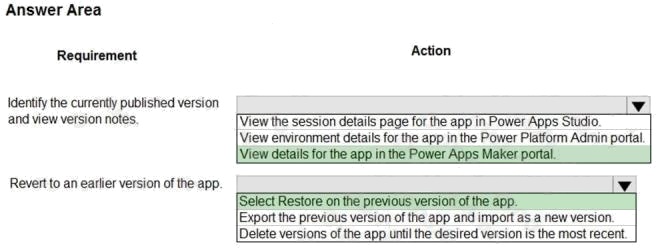
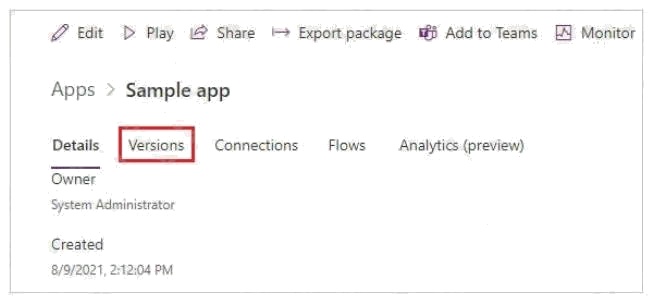
Box 1: View details for the app in the Power Apps Maker portal.
Scenario: Previous versions of the mobile app must be available for roll back purposes.
1. Sign in to Power Apps.
2. Select Apps from the left-pane.
3. Select Apps.
4. Select your app.
5. Select Details.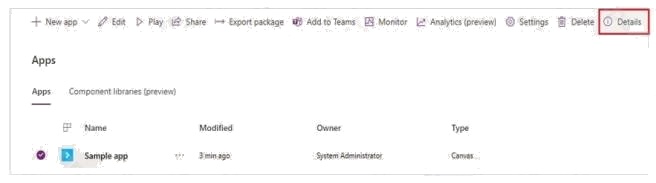
Box 2: Select Restore on the previous version of the app.
Scenario: All versions of software that have been used in production must be retained for five years.
Restore an app from your account 1. Sign in to Power Apps.
2. Select Apps from the left-pane.
3. Select Apps.
4. Select your app.
5. Select Details.
6. Select Details option.
9. Select the app version that you want to restore.
10.Select Restore.
11.Select Restore.
12.Confirm by selecting Restore again.
Reference: https://docs.microsoft.com/en-us/powerapps/maker/canvas-apps/restore-an-app
Comments
Question 9 Topic 5, Case Study 5Case Study Question View Case
DRAG DROP
You publish the first version of the app and solution on November 1, 2020.
You need to create the version numbers for the app and the solution.
Which version numbers should you use? To answer, select the appropriate options in the answer area.
NOTE: Each correct selection is worth one point.
Select and Place: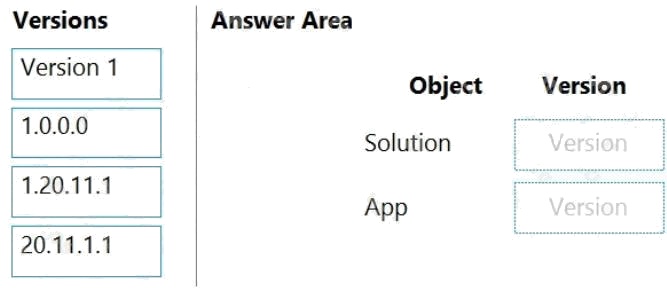
Answer:
Explanation:
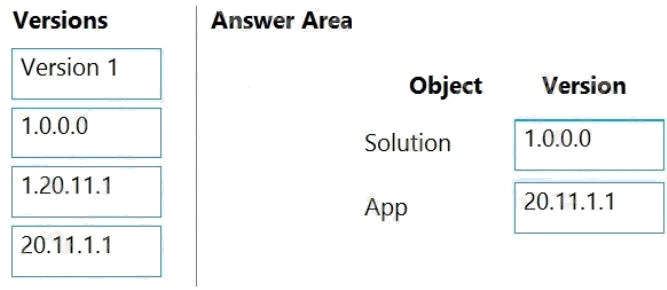
Box 1: 1.0.0.0
When identifying versions of the app solution, all dependencies, entities, and user interfaces components must be identified
to avoid any unintentional issues caused by reverting individual components to a previous version.
A solutions version has the following format: major.minor.build.revision. An update must have a higher major, minor, build or
revision number than the parent solution. For example, for a base solution version 3.1.5.7, a small update could be a version
3.1.5.8 or a slightly more signficant update could have version 3.1.7.0. A substantially more significant update could be
version 3.2.0.0.
Box 2: 20.11.1.1 Scenario:
You must use the following version control numbering scheme:
- Major: The last two digits of the year the app is packaged
- Minor: Two digits that represent the month when the app is packaged
- Build: A number that is incremented to represent significant changes to the app
- Revision: The incremented revision for a package
New versions of the application must completely replace previous versions of the app.
Reference: https://docs.microsoft.com/en-us/powerapps/maker/common-data-service/update-solutions
Comments
Question 10 Topic 5, Case Study 5Case Study Question View Case
HOTSPOT You need to roll back the mobile app to an earlier version.
What should you do? To answer, select the appropriate options in the answer area.
NOTE: Each correct selection is worth one point.
Hot Area: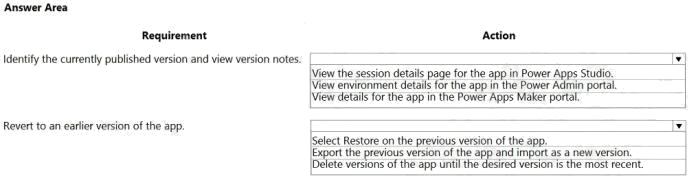
Answer:
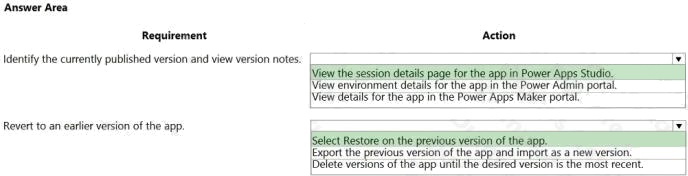
Explanation:
Box 1: View the sessions details page for the app in Power Apps Studio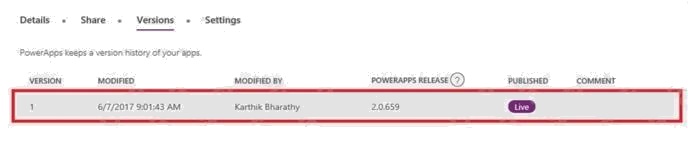
Box 2: Select Restore on the previous version of the app.
Restore an app from your account
1. Open powerapps.com, and then click or tap Apps in the left navigation bar.
2. Near the right edge, click or tap the info icon for the app that you want to restore.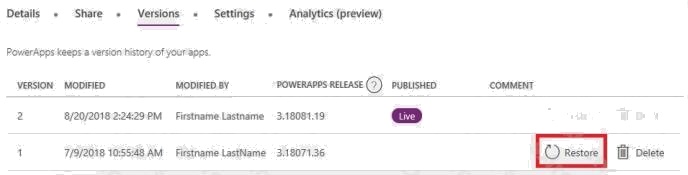
Reference: https://powerapps.microsoft.com/sk-sk/blog/saveandpublish/ https://docs.microsoft.com/en-
us/powerapps/maker/canvas-apps/restore-an-app
Comments
Page 1 out of 20
Viewing questions 1-10 out of 206
page 2