Question 1 Topic 4, Mixed Questions
HOTSPOT
You create a new IoT device named device1 on iothub1. Device1 has a primary key of Uihuih76hbHb.
How should you complete the device connection string? To answer, select the appropriate options in the answer area.
NOTE: Each correct selection is worth one point.
Hot Area: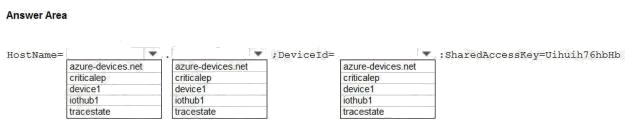
Answer:
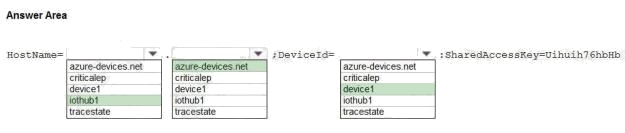
Explanation:
Box 1: iothub1
The Azure IoT hub is named iothub1.
Box 2: azure-devices.net
The format of the device connection string looks like:
HostName={YourIoTHubName}.azure-devices.net;DeviceId=MyNodeDevice;SharedAccessKey={YourSharedAccessKey}
Box 1: device1
Device1 has a primary key of Uihuih76hbHb.
Reference:
https://docs.microsoft.com/en-us/azure/iot-hub/quickstart-control-device-dotnet
Implement the IoT solution infrastructure
Comments
Question 2 Topic 4, Mixed Questions
Note: This question is part of a series of questions that present the same scenario. Each question in the series contains a
unique solution that might meet the stated goals. Some question sets might have more than one correct solution, while
others might not have a correct solution.
After you answer a question in this section, you will NOT be able to return to it. As a result, these questions will not appear in
the review screen.
You have an Azure IoT solution that includes an Azure IoT hub, a Device Provisioning Service instance, and 1,000
connected IoT devices.
All the IoT devices are provisioned automatically by using one enrollment group.
You need to temporarily disable the IoT devices from the connecting to the IoT hub.
Solution: From the Device Provisioning Service, you disable the enrollment group, and you disable device entries in the
identity registry of the IoT hub to which the IoT devices are provisioned.
Does the solution meet the goal?
- A. Yes
- B. No
Answer:
A
Explanation:
You may find it necessary to deprovision devices that were previously auto-provisioned through the Device Provisioning
Service.
In general, deprovisioning a device involves two steps:
1. Disenroll the device from your provisioning service, to prevent future auto-provisioning. Depending on whether you want to
revoke access temporarily or permanently, you may want to either disable ordelete an enrollment entry.
2. Deregister the device from your IoT Hub, to prevent future communications and data transfer. Again, you can temporarily
disable or permanently delete the device's entry in the identity registry for the IoTHub where it was provisioned.
Reference: https://docs.microsoft.com/bs-latn-ba/azure/iot-dps/how-to-unprovision-devices
Comments
Question 3 Topic 4, Mixed Questions
Note: This question is part of a series of questions that present the same scenario. Each question in the series contains a
unique solution that might meet the stated goals. Some question sets might have more than one correct solution, while
others might not have a correct solution.
After you answer a question in this section, you will NOT be able to return to it. As a result, these questions will not appear in
the review screen.
You have an Azure IoT solution that includes an Azure IoT hub, a Device Provisioning Service instance, and 1,000
connected IoT devices.
All the IoT devices are provisioned automatically by using one enrollment group.
You need to temporarily disable the IoT devices from the connecting to the IoT hub.
Solution: You delete the enrollment group from the Device Provisioning Service.
Does the solution meet the goal?
- A. Yes
- B. No
Answer:
B
Explanation:
Instead, from the Device Provisioning Service, you disable the enrollment group, and you disable device entries in the
identity registry of the IoT hub to which the IoT devices are provisioned.
Reference: https://docs.microsoft.com/bs-latn-ba/azure/iot-dps/how-to-unprovision-devices
Comments
Question 4 Topic 4, Mixed Questions
Note: This question is part of a series of questions that present the same scenario. Each question in the series contains a
unique solution that might meet the stated goals. Some question sets might have more than one correct solution, while
others might not have a correct solution.
After you answer a question in this section, you will NOT be able to return to it. As a result, these questions will not appear in
the review screen.
You have an Azure IoT solution that includes an Azure IoT hub, a Device Provisioning Service instance, and 1,000
connected IoT devices.
All the IoT devices are provisioned automatically by using one enrollment group.
You need to temporarily disable the IoT devices from the connecting to the IoT hub.
Solution: From the IoT hub, you change the credentials for the shared access policy of the IoT devices.
Does the solution meet the goal?
- A. Yes
- B. No
Answer:
B
Explanation:
Reference: https://docs.microsoft.com/bs-latn-ba/azure/iot-dps/how-to-unprovision-devices
Comments
Question 5 Topic 4, Mixed Questions
HOTSPOT
You have an Azure IoT hub.
You plan to deploy 1,000 IoT devices by using automatic device management.
The device twin is shown below.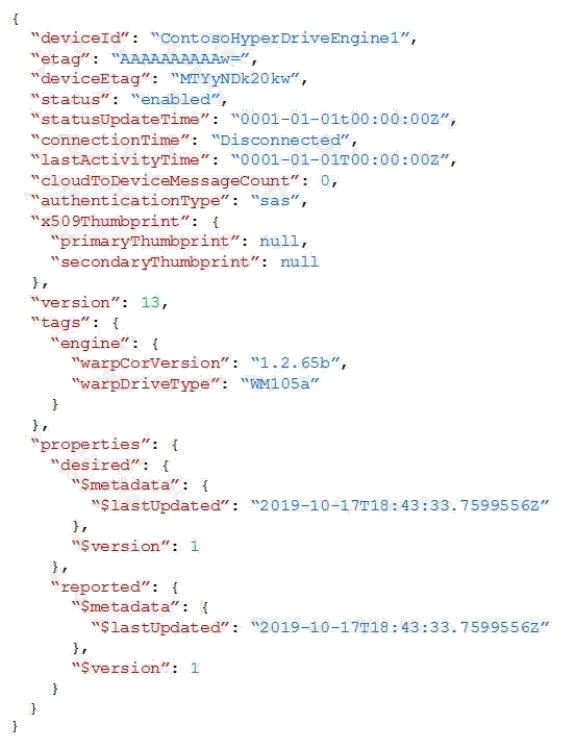
You need to configure automatic device management for the deployment.
Which target Condition and Device Twin Path should you use? To answer, select the appropriate options in the answer area.
NOTE: Each correct selection is worth one point.
Hot Area:
Answer:
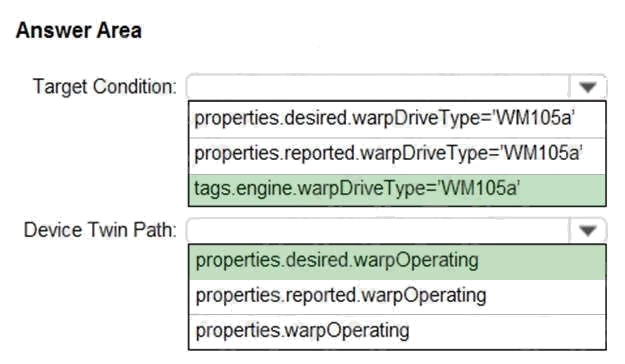
Explanation:
Box 1: tags.engine.warpDriveType='VM105a'
Use tags to target twins. Before you create a configuration, you must specify which devices or modules you want to affect.
Azure IoT Hub identifies devices and using tags in the device twin, and identifies modules using tags in the module twin.
Box 2: properties.desired.warpOperating
The twin path, which is the path to the JSON section within the twin desired properties that will be set.
For example, you could set the twin path to properties.desired.chiller-water and then provide the following JSON content:
{
"temperature": 66,
"pressure": 28
}
Reference: https://docs.microsoft.com/en-us/azure/iot-hub/iot-hub-automatic-device-management
Comments
Question 6 Topic 4, Mixed Questions
You plan to deploy a standard tier Azure IoT hub.
You need to perform an over-the-air (OTA) update on devices that will connect to the IoT hub by using scheduled jobs.
What should you use?
- A. a device-to-cloud message
- B. the device twin reported properties
- C. a cloud-to-device message
- D. a direct method
Answer:
D
Explanation:
Releases via the REST API.
All of the operations that can be performed from the Console can also be automated using the REST API. You might do this
to automate your build and release process, for example.
You can build firmware using the Particle CLI or directly using the compile source code API.
Note: Over-the-air (OTA) firmware updates are a vital component of any IoT system. Over-the-air firmware updates refers to
the practice of remotely updating the code on an embedded device.
Reference:
https://docs.particle.io/tutorials/device-cloud/ota-updates/
Comments
Question 7 Topic 4, Mixed Questions
You have an IoT device that gathers data in a CSV file named Sensors.csv.
You deploy an Azure IoT hub that is accessible at ContosoHub.azure-devices.net.
You need to ensure that Sensors.csv is uploaded to the IoT hub.
Which two actions should you perform? Each correct answer presents part of the solution.
NOTE: Each correct selection is worth one point.
- A. Upload Sensors.csv by using the IoT Hub REST API.
- B. From the Azure subscription, select the IoT hub, select Message routing, and then configure a route to storage.
- C. From the Azure subscription, select the IoT hub, select File upload, and then configure a storage container.
- D. Configure the device to use a GET request to ContosoHub.azure-devices.net/devices/ContosoDevice1/files/notifications.
Answer:
A C
Explanation:
C: To use the file upload functionality in IoT Hub, you must first associate an Azure Storage account with your hub. Select
File upload to display a list of file upload properties for the IoT hub that is being
modified.
For Storage container: Use the Azure portal to select a blob container in an Azure Storage account in your current Azure
subscription to associate with your IoT Hub. If necessary, you can create an Azure
Storage account on the Storage accounts blade and blob container on the Containers
A: IoT Hub has an endpoint specifically for devices to request a SAS URI for storage to upload a file. To start the file upload
process, the device sends a POST request to {iot hub}.azure-devices.net/ devices/{deviceId}/files with the following JSON
body:
{
"blobName": "{name of the file for which a SAS URI will be generated}"
}
Incorrect Answers:
D: Deprecated: initialize a file upload with a GET. Use the POST method instead.
Reference: https://github.com/MicrosoftDocs/azure-docs/blob/master/articles/iot-hub/iot-hub-configure-file-upload.md
Comments
Question 8 Topic 4, Mixed Questions
You plan to deploy an Azure IoT hub.
The IoT hub must support the following:
Three Azure IoT Edge devices
2,500 IoT devices
Each IoT device will spend a 6 KB message every five seconds.
You need to size the IoT hub to support the devices. The solution must minimize costs.
What should you choose?
- A. one unit of the S1 tier
- B. one unit of the B2 tier
- C. one unit of the B1 tier
- D. one unit of the S3 tier
Answer:
D
Explanation:
2500* 6 KB * 12 = 180,000 KB/minute = 180 MB/Minute.
B3, S3 can handle up to 814 MB/minute per unit.
Incorrect Answers:
A, C: B1, S1 can only handle up to 1111 KB/minute per unit B: B2, S2 can only handle up to 16 MB/minute per unit.
Reference: https://docs.microsoft.com/en-us/azure/iot-hub/iot-hub-scaling
Comments
Question 9 Topic 4, Mixed Questions
DRAG DROP
You deploy an Azure IoT hub.
You need to demonstrate that the IoT hub can receive messages from a device.
Which three actions should you perform in sequence? To answer, move the appropriate actions from the list of actions to the
answer area and arrange them in the correct order.
Select and Place: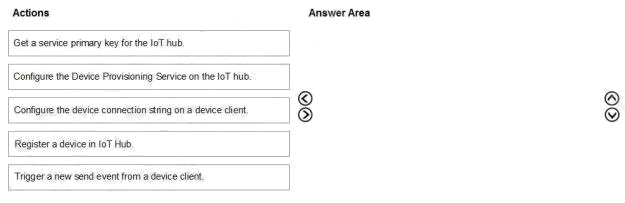
Answer:
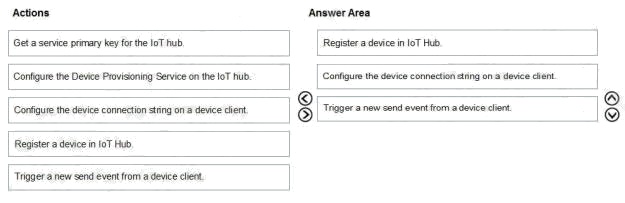
Explanation:
Step 1: Register a device in IoT Hub
Before you can use your IoT devices with Azure IoT Edge, you must register them with your IoT hub. Once a device is
registered, you can retrieve a connection string to set up your device for IoT Edge workloads.
Step 2: Configure the device connection string on a device client.
When you're ready to set up your device, you need the connection string that links your physical device with its identity in the
IoT hub.
Step 3: Trigger a new send event from a device client.
Reference: https://docs.microsoft.com/en-us/azure/iot-edge/how-to-register-device
Comments
Question 10 Topic 4, Mixed Questions
DRAG DROP
You have an Azure IoT hub.
You plan to attach three types of IoT devices as shown in the following table.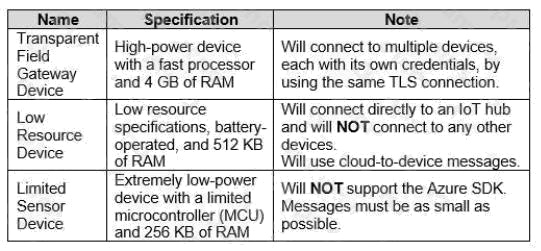
You need to select the appropriate communication protocol for each device.
What should you select? To answer, drag the appropriate protocols to the correct devices. Each protocol may be used once,
more than once, or not at all. You may need to drag the split bar between panes or scroll to view content.
NOTE: Each correct selection is worth one point.
Select and Place: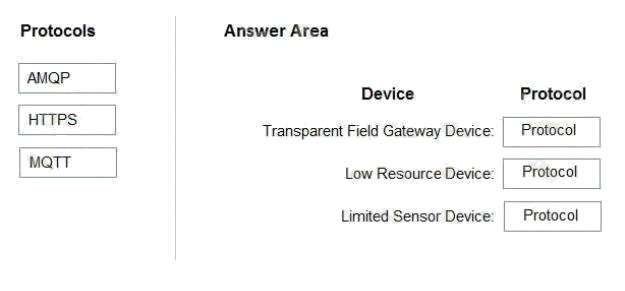
Answer:
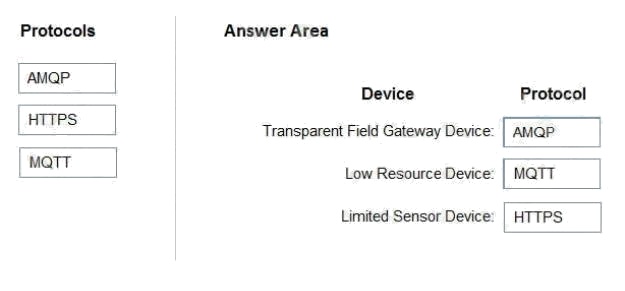
Explanation:
Box 1: AMQP
Use AMQP on field and cloud gateways to take advantage of connection multiplexing across devices.
Box 2: MQTT
MQTT is used on all devices that do not require to connect multiple devices (each with its own per-device credentials) over
the same TLS connection.
Box 3: HTTPS
Use HTTPS for devices that cannot support other protocols.
Reference:
https://docs.microsoft.com/en-us/azure/iot-hub/iot-hub-devguide-protocols
Comments
Page 1 out of 13
Viewing questions 1-10 out of 136
page 2