Question 1
Which of the following switch actions cannot both be used concurrently on the same switch?
- A. Access Port ACL & Switch Block
- B. Switch Block & Assign to VLAN
- C. Endpoint Address ACL & Assign to VLAN
- D. Access Port ACL & Endpoint Address ACL
- E. Access Port ACL & Assign to VLAN
Answer:
D
Explanation:
Comprehensive and Detailed Explanation From Exact Extract of Forescout Platform Administration
and Deployment:
According to the Forescout Switch Plugin Configuration Guide, Access Port ACL and Endpoint Address
ACL cannot both be used concurrently on the same endpoint. These two actions are mutually
exclusive because they both apply ACL rules to control traffic, but through different mechanisms, and
attempting to apply both simultaneously creates a conflict.
Switch Restrict Actions Overview:
The Forescout Switch Plugin provides several restrict actions that can be applied to endpoints:
Access Port ACL - Applies an operator-defined ACL to the access port of an endpoint
Endpoint Address ACL - Applies an operator-defined ACL based on the endpoint's address (MAC or
IP)
Assign to VLAN - Assigns the endpoint to a specific VLAN
Switch Block - Completely isolates endpoints by turning off their switch port
Action Compatibility Rules:
According to the Switch Plugin Configuration Guide:
Endpoint Address ACL vs Access Port ACL - These CANNOT be used together on the same endpoint
because:
Both actions modify switch filtering rules
Both actions can conflict when applied simultaneously
The Switch Plugin cannot determine priority between conflicting ACL configurations
Applying both would create ambiguous filtering logic on the switch
Actions That CAN Be Used Together:
Access Port ACL + Assign to VLAN -
Can be used concurrently
✓
Endpoint Address ACL + Assign to VLAN -
Can be used concurrently
✓
Switch Block + Assign to VLAN - This is semantically redundant (blocking takes precedence) but is
allowed
Access Port ACL + Switch Block -
Can be used concurrently (though Block takes precedence)
✓
Why Other Options Are Incorrect:
A . Access Port ACL & Switch Block - These CAN be used concurrently; Switch Block would take
precedence
B . Switch Block & Assign to VLAN - These CAN be used concurrently (though redundant)
C . Endpoint Address ACL & Assign to VLAN - These CAN be used concurrently
E . Access Port ACL & Assign to VLAN - These CAN be used concurrently; they work on different
aspects of port management
ACL Action Definition:
According to the documentation:
Access Port ACL - "Use the Access Port ACL action to define an ACL that addresses one or more than
one access control scenario, which is then applied to an endpoint's switch port"
Endpoint Address ACL - "Use the Endpoint Address ACL action to apply an operator-defined ACL,
addressing one or more than one access control scenario, which is applied to an endpoint's address"
Referenced Documentation:
Forescout CounterACT Switch Plugin Configuration Guide Version 8.12
Switch Plugin Configuration Guide v8.14.2
Switch Restrict Actions documentation
Comments
Question 2
When configuring policies, which of the following statements is true regarding this image?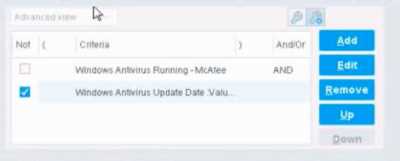
- A. The NOT checkbox means the "Evaluate Irresolvable as" should be set to True
- B. The external NOT does not change the meaning of "evaluate irresolvable as"
- C. Has no effect on irresolvable hosts
- D. Negates the criteria inside the property
- E. The NOT checkbox means the "Evaluate Irresolvable as" should be set to False
Answer:
D
Explanation:
The NOT checkbox negates the criteria inside the property. According to the Forescout
Administration Guide, when the NOT checkbox is selected on a policy condition criteria, it reverses
the logic of that specific criterion evaluation.
Understanding the NOT Operator in Policy Conditions:
In Forescout policy configuration, the NOT operator is a Boolean logic operator that inverts the result
of the property evaluation. When you select the NOT checkbox:
Logical Inversion - The condition is evaluated normally, and then the result is inverted
Criteria Negation - If a criteria would normally match an endpoint, selecting NOT causes it NOT to
match
Property-Level Operation - The NOT operator applies specifically to that individual
property/criterion, not to the entire rule
Example of NOT Logic:
Without NOT:
Condition: "Windows Antivirus Running = True"
Result: Matches endpoints that HAVE antivirus running
With NOT:
Condition: "NOT (Windows Antivirus Running = True)"
Result: Matches endpoints that DO NOT have antivirus running
NOT vs. "Evaluate Irresolvable As":
According to the documentation, the NOT operator and "Evaluate Irresolvable As" are independent
settings:
NOT operator - Negates/inverts the criteria evaluation itself
"Evaluate Irresolvable As" - Defines what happens when a property CANNOT be resolved (is
irresolvable)
These serve different purposes:
NOT determines what value to match
Evaluate Irresolvable As determines how to handle unresolvable properties
Handling Irresolvable Criteria:
According to the administration guide documentation:
"If you do not select the Evaluate irresolvable criteria as option, the criteria is handled as irresolvable
and the endpoint does not undergo further analysis."
The "Evaluate Irresolvable As" checkbox allows you to define whether an irresolvable property
should be treated as True or False when the property value cannot be determined. This
is independent of the NOT checkbox.
Why Other Options Are Incorrect:
A . The NOT checkbox means the "Evaluate Irresolvable as" should be set to True - Incorrect; NOT and
Evaluate Irresolvable As are independent settings
B . The external NOT does not change the meaning of "evaluate irresolvable as" - While technically
true that NOT doesn't change the Evaluate Irresolvable setting, the answer doesn't explain what NOT
actually does
C . Has no effect on irresolvable hosts - Incorrect; NOT negates the criterion logic regardless of
whether it's resolvable
E . The NOT checkbox means the "Evaluate Irresolvable as" should be set to False - Incorrect; NOT
and Evaluate Irresolvable As are independent
Policy Condition Structure:
According to the documentation, a policy condition consists of:
Property criteria combined with Boolean logic operators
Individual criterion settings including NOT operator
Irresolvable handling options that are separate from the NOT operator
Referenced Documentation:
Forescout Administration Guide - Define policy scope
Forescout eyeSight policy sub-rule advanced options
Handling Irresolvable Criteria section
Working with Policy Conditions
Comments
Question 3
Which of the following is a User Directory feature?
- A. Guest authentication
- B. Dashboard
- C. Radius authorization
- D. Query Switches
- E. Assets portal
Answer:
A
Explanation:
Comprehensive and Detailed Explanation From Exact Extract of Forescout Platform Administration
and Deployment:
Guest authentication is a User Directory feature. According to the Forescout Authentication Module
Overview Guide and the User Directory Plugin Configuration Guide, the User Directory Plugin
enables guest authentication and management through configured directory servers.
User Directory Plugin Features:
The User Directory Plugin (version 6.4+) provides the following core features:
Endpoint User Resolution - Resolves endpoint user details by querying directory servers
User Authentication - Performs user authentication via configured internal and external directory
servers (Active Directory, LDAP, etc.)
Guest Authentication - Enables authentication and registration of guest users on the network
Guest Sponsorship - Allows corporate employee sponsors to approve guest network access
Guest Management Portal - Provides functionality for managing guest hosts and guest portal access
Directory Server Integration - Integrates with enterprise directory servers for credential validation
Guest Management Capabilities:
The User Directory Plugin specifically enables:
Guest user registration and authentication
Guest approval workflows through sponsor groups
Guest session management
Guest password policies
Guest tag management for categorization
Why Other Options Are Incorrect:
B . Dashboard - This is a general console feature, not specific to the User Directory plugin
C . Radius authorization - This is the function of the RADIUS plugin, not the User Directory plugin
(though they work together in the Authentication Module)
D . Query Switches - This is a function of the Switch plugin, not the User Directory plugin
E. Assets portal - This is a general Forescout platform feature, not specific to the User Directory
plugin
Authentication Module Structure:
According to the documentation, the Authentication Module consists of two plugins:
RADIUS Plugin - Handles 802.1X authentication, authorization, and accounting
User Directory Plugin - Handles user resolution, authentication, and guest management
These work together but have distinct responsibilities. The User Directory Plugin specifically handles
guest authentication among its feature set.
Referenced Documentation:
Forescout Authentication Module Overview Guide Version 1.1
About the User Directory Plugin documentation
User Directory Plugin Server and Guest Management Configuration Guide
Comments
Question 4
When troubleshooting a SecureConnector management issue for a Windows host, how would you
determine if SecureConnector management packets are reaching CounterACT successfully?
- A. Use the tcpdump command and filter for tcp port 10005 traffic from the host IP address reaching the monitor port
- C. Use the tcpdump command and filter for tcp port 10003 traffic from the host IP address reaching the monitor port
- D. Use the tcpdump command and filter for tcp port 2200 traffic from the host IP address reaching the management port
- E. Use the tcpdump command and filter for tcp port 10003 traffic from the host IP address reaching the management port
Answer:
E
Explanation:
Comprehensive and Detailed Explanation From Exact Extract of Forescout Platform Administration
and Deployment:
According to the Forescout Quick Installation Guide and official port configuration
documentation, SecureConnector for Windows uses TCP port 10003, and the management packets
should be captured from the host IP address reaching the management port (not the monitor port).
Therefore, the correct command would use tcpdump filtering for tcp port 10003 traffic reaching the
management port.
SecureConnector Port Assignments:
According to the official documentation:
SecureConnector Type
Port
Protocol
Function
Windows
10003/TCP
TLS (encrypted)
Allows SecureConnector to create a secure encrypted TLS
connection to the Appliance from Windows machines
Allows SecureConnector to create a secure encrypted TLS
OS X
10005/TCP
TLS (encrypted)
connection to the Appliance from OS X machines
TLS 1.2
Allows SecureConnector to create a secure connection over
Linux
10006/TCP
(encrypted)
TLS 1.2 to the Appliance from Linux machines
Port 2200 is for Legacy Linux SecureConnector (older versions using SSH encryption), not for
Windows.
Forescout Appliance Interface Types:
Management Port - Used for administrative access and SecureConnector connections
Monitor Port - Used for monitoring and analyzing network traffic
Response Port - Used for policy actions and responses
SecureConnector connections reach the management port, not the monitor port.
Troubleshooting SecureConnector Connectivity:
To verify that SecureConnector management packets from a Windows host are successfully reaching
CounterACT, use the following tcpdump command:
bash
tcpdump -i [management_interface] -nn "tcp port 10003 and src [windows_host_ip]"
This command:
Monitors the management interface
Filters for TCP port 10003 traffic
Captures packets from the Windows host IP address reaching the management port
Verifies bidirectional TLS communication
Why Other Options Are Incorrect:
A . tcp port 10005 from host IP reaching monitor port - Port 10005 is for OS X, not Windows; should
reach management port, not monitor port
B . tcp port 2200 reaching management port - Port 2200 is for legacy Linux SecureConnector with
SSH, not Windows
C . tcp port 10003 reaching monitor port - Port 10003 is correct for Windows, but should reach
management port, not monitor port
D . tcp port 2200 reaching management port - Port 2200 is for legacy Linux SecureConnector, not
Windows
SecureConnector Connection Process:
According to the documentation:
SecureConnector on the Windows endpoint initiates a connection to port 10003
Connection is established to the Appliance's management port
When SecureConnector connects to an Appliance or Enterprise Manager, it is redirected to the
Appliance to which its host is assigned
Ensure port 10003 is open to all Appliances and Enterprise Manager for transparent mobility
Referenced Documentation:
Forescout Quick Installation Guide v8.2
Forescout Quick Installation Guide v8.1
Port configuration section: SecureConnector for Windows
Comments
Question 5
What is the command to monitor system memory and CPU load with 5 second update intervals?
- A. watch -t 5 vmstat
- B. vmstat 5
- C. vmstat -t 5
- D. watch uptime
- E. watch -n 10 vmstat
Answer:
B
Explanation:
Comprehensive and Detailed Explanation From Exact Extract of Forescout Platform Administration
and Deployment:
The correct command to monitor system memory and CPU load with 5 second update intervals
is vmstat 5. According to the official Linux documentation and Forescout CLI reference materials,
the vmstat command uses a straightforward syntax where the first numerical parameter specifies the
delay interval in seconds.
vmstat Command Syntax:
The vmstat (Virtual Memory Statistics) command uses the following syntax:
bash
vmstat [options] [delay] [count]
Where:
delay - The time interval (in seconds) between updates
count - The number of updates to display (optional; if omitted, displays indefinitely)
vmstat 5 Command:
When you execute vmstat 5:
Updates are displayed every 5 seconds
Continues indefinitely until manually stopped
Shows memory and CPU statistics in each update
Example output:
text
procs -----------memory---------- ---swap-- -----io---- -system-- ------cpu-----
r b swpd free buff cache si so bi bo in cs us sy id wa st
1 0 0 1166396 70768 2233228 0 0 0 13 10 24 0 0 100 0 0
0 0 0 1165568 70776 2233352 0 0 0 8 121 224 0 0 99 0 0
0 0 0 1166608 70784 2233352 0 0 0 53 108 209 0 0 100 0 0
Each line represents a new report generated at 5-second intervals.
Memory and CPU Information Provided:
The vmstat output includes:
Memory Columns:
free - Amount of idle memory
buff - Amount of memory used as buffers
cache - Amount of memory used as cache
swpd - Amount of virtual memory used
si/so - Memory swapped in/out
CPU Columns:
us - Time spent running user code
sy - Time spent running kernel code
id - Time spent idle
wa - Time spent waiting for I/O
st - Time stolen from virtual machine
Why Other Options Are Incorrect:
A . watch -t 5 vmstat - Incorrect syntax; -t removes headers, not set intervals; interval flag is -n, not -t
C . vmstat -t 5 - The -t option adds a timestamp to output, but doesn't set the interval; the 5 would be
ignored
D . watch uptime - The uptime command displays system uptime and load average but not detailed
memory/CPU stats; watch requires -n flag for interval specification
E . watch -n 10 vmstat - While syntactically valid, this uses a 10-second interval, not 5 seconds; also
unnecessary since vmstat already supports delay parameter directly
Additional vmstat Examples:
According to documentation:
bash
vmstat 5 5
# Display 5 updates at 5-second intervals
vmstat 1 10 # Display 10 updates at 1-second intervals
vmstat -t 5 5 # Display 5 updates every 5 seconds WITH timestamps
First Report Note:
According to the documentation:
"When you run vmstat without any parameters, it shows system values based on the averages for
each element since the server was last rebooted. These results are not a snapshot of current values."
The first report with vmstat 5 shows averages since last reboot; subsequent reports show statistics
for each 5-second interval.
Referenced Documentation:
Linux vmstat Command Documentation
RedHat vmstat Command Guide
Oracle Solaris vmstat Manual
Microsoft Azure Linux Troubleshooting Guide
IBM AIX vmstat Documentation
Comments
Question 6
Which of the following best describes why PXE boot endpoints should be exempt from Assessment
policies?
- A. Because they will not be subject to the Acceptable Use Policy
- B. They have already been deployed and should immediately be subject to Assessment policies
- C. Because they are not yet manageable and may not have all the required software and services installed
- D. Because they will never be manageable or have the required software and services
- E. Because they are special endpoints playing a specific role in the network
Answer:
C
Explanation:
Comprehensive and Detailed Explanation From Exact Extract of Forescout Platform Administration
and Deployment:
PXE (Preboot Execution Environment) boot endpoints should be exempt from Assessment policies
because they are not yet manageable and may not have all the required software and services
installed. According to the Forescout Administration Guide, endpoints in the early stages of
deployment, such as those booting via PXE, are temporary in nature and lack the necessary
management capabilities and required software components.
PXE Boot Endpoints Characteristics:
PXE boot endpoints represent machines in a temporary state during the deployment process:
Not Yet Fully Deployed - PXE boot is used during initial OS installation and deployment
Lack Required Services - The endpoint does not yet have installed:
SecureConnector (if required for management)
Endpoint agents
Required security software
Management services
Limited Configuration - The endpoint may not have completed network configuration
Temporary State - PXE boot endpoints are in a transient state, not their final operational state
Policy Endpoint Exceptions:
According to the documentation, administrators can "select endpoints in the Detections pane and
exempt them from further inspection for the policy that detected them". This is particularly
important for PXE boot endpoints because:
False Positives - Assessment policies might flag PXE boot endpoints as non-compliant due to missing
software that hasn't been installed yet
Blocked Deployment - If blocking actions are applied, they could interfere with the deployment
process
Temporary Assessment - Once the endpoint is fully deployed and manageable, it can be added back
to Assessment policies
Operational Efficiency - Exempting PXE boot endpoints prevents unnecessary policy violations during
the deployment window
Manageable vs. Unmanageable Endpoints:
According to the documentation:
"Endpoints are generally unmanageable if their remote registry and file system cannot be accessed
by Forescout. Unmanageable hosts can be included in your policy."
PXE boot endpoints specifically fall into this category because:
Remote management is not yet available
Required agents are not installed
File system access is not established
Why Other Options Are Incorrect:
A . Because they will not be subject to the Acceptable Use Policy - Not the primary reason;
Assessment policies differ from Acceptable Use policies
B . They have already been deployed and should immediately be subject to Assessment policies -
Contradicts the purpose; PXE boot endpoints are NOT yet deployed
D . Because they will never be manageable or have the required software and services - Incorrect;
once deployed, they WILL become manageable
E . Because they are special endpoints playing a specific role in the network - While true in context,
this doesn't explain why they need exemption
Referenced Documentation:
Forescout Administration Guide - Create Policy Endpoint Exceptions
Restricting Endpoint Inspection documentation
Manage Actions - Unmanageable hosts section
Comments
Question 7
The host property 'service banner' is resolved by what function?
- A. Packet engine
- B. NMAP scanning
- C. Device classification engine
- D. Device profile library
- E. NetFlow
Answer:
B
Explanation:
Comprehensive and Detailed Explanation From Exact Extract of Forescout Platform Administration
and Deployment:
The Service Banner host property is resolved by NMAP scanning. According to the Forescout
Administration Guide - Advanced Classification Properties, the Service Banner property "Indicates
the service and version information, as determined by Nmap".
Service Banner Property:
The Service Banner is an Advanced Classification Property that captures critical service identification
information:
Purpose - Identifies running services and their versions on endpoints
Resolution Method - Uses NMAP banner scanning functionality
Information Provided - Service name and version numbers (e.g., "Apache 2.4.41", "OpenSSH 7.6")
NMAP Banner Scanning Configuration:
According to the HPS Inspection Engine Configuration Guide, the Service Banner is specifically
resolved when "Use Nmap Banner Scan" option is selected:
When Use Nmap Banner Scan is enabled, the HPS Inspection Engine uses NMAP banner scans to
improve the resolution of device services, application versions, and other details that help classify
endpoints.
NMAP Banner Scan Process:
According to the CounterACT HPS Inspection Engine Guide, when NMAP banner scanning is enabled:
text
NMAP command line parameters for banner scan:
-T Insane -sV -p T: 21,22,23,53,80,135,88,1723,3389,5900
The -sV parameter specifically performs version detection, which resolves the Service Banner
property by scanning open ports and identifying service banners returned by those services.
Classification Process:
The Service Banner property is resolved through the following workflow:
Port Detection - Forescout identifies open ports on the endpoint
Banner Scanning - NMAP sends requests to identified ports
Service Identification - Services respond with banner information containing version data
Property Resolution - The Service Banner property is populated with the version information
discovered
Why Other Options Are Incorrect:
A . Packet engine - The Packet Engine provides network visibility through port mirroring, but does
not resolve service banners through deep packet inspection
C . Device classification engine - While involved in overall classification, the Device Classification
Engine doesn't specifically resolve service banners; NMAP does
D . Device profile library - The Device Profile Library contains pre-defined classification profiles but
doesn't actively scan for service banners
E . NetFlow - NetFlow provides network flow data and statistics, but cannot determine service
version information
Service Banner Examples:
Service Banner property values resolved by NMAP scanning include:
Apache/2.4.41 (Ubuntu)
OpenSSH 7.6p1
Microsoft-IIS/10.0
nginx/1.17.0
MySQL/5.7.26-0ubuntu0.18.04.1
NMAP Scanning Requirements:
According to the documentation:
NMAP Banner Scan must be explicitly enabled in HPS Inspection Engine configuration
Banner scanning targets specific ports typically associated with common services
Service version information improves endpoint classification accuracy
Referenced Documentation:
Forescout Administration Guide - Advanced Classification Properties
HPS Inspection Engine - Configure Classification Utility
CounterACT Endpoint Module HPS Inspection Engine Configuration Guide Version 10.8
NMAP Scan Logs documentation
Comments
Question 8
When troubleshooting an issue that affects multiple endpoints, why might you choose to view Policy
logs before Host logs?
- A. Because you can gather more pertinent information about a single host
- B. Because Policy logs show details for a range of endpoints
- C. You would not. Host logs are the best choice for a range of endpoints
- D. Policy logs may help to pinpoint the issue for a specific host
- E. Looking at Host logs is always the first step in the process
Answer:
B
Explanation:
Comprehensive and Detailed Explanation From Exact Extract of Forescout Platform Administration
and Deployment:
When troubleshooting an issue that affects multiple endpoints, you should view Policy logs before
Host logs because Policy logs show details for a range of endpoints. According to the Forescout
Administration Guide, Policy Logs are specifically designed to "investigate the activity of specific
endpoints, and display information about how those endpoints are handled" across multiple devices.
Policy Logs vs. Host Logs - Purpose and Scope:
Policy Logs:
Scope - Shows policy activity across multiple endpoints simultaneously
Purpose - Investigates how multiple endpoints are handled by policies
Information - Displays which endpoints match which policies, what actions were taken, and policy
evaluation results
Use Case - Best for understanding policy-wide impact and identifying patterns across multiple
endpoints
Host Logs:
Scope - Shows detailed activity for a single specific endpoint
Purpose - Investigates specific activity of individual endpoints
Information - Displays all events and actions pertaining to that single host
Use Case - Best for deep-diving into a single endpoint's detailed history
Troubleshooting Methodology for Multiple Endpoints:
When troubleshooting an issue affecting multiple endpoints, the recommended approach is:
Start with Policy Logs - Determine which policy or policies are affecting the multiple endpoints
Identify Pattern - Look for common policy matches or actions across the affected endpoints
Pinpoint Root Cause - Determine if the issue is policy-related or host-related
Then Use Host Logs - After identifying the affected hosts, examine individual Host Logs for detailed
troubleshooting
Policy Log Information:
Policy Logs typically display:
Endpoint IP and MAC address
Policy name and match criteria
Actions executed on the endpoint
Timestamp of policy evaluation
Status of actions taken
Efficient Troubleshooting Workflow:
According to the documentation:
When multiple endpoints are affected, examining Policy Logs first allows you to:
Identify Common Factor - Quickly see if all affected endpoints are in the same policy
Spot Misconfiguration - Determine if a policy condition is incorrectly matching endpoints
Track Action Execution - See what policy actions were executed across the range of endpoints
Save Time - Avoid reviewing individual host logs when a policy-level issue is evident
Example Scenario:
If 50 endpoints suddenly lose network connectivity:
First, check Policy Logs - Determine if all 50 endpoints matched a policy that executed a blocking
action
Identify the Policy - Look for a common policy match across all 50 hosts
Examine Root Cause - Policy logs will show if a Switch Block action or VLAN assignment action was
executed
Then, check individual Host Logs - If further detail is needed, examine specific host logs for those 50
endpoints
Why Other Options Are Incorrect:
A . Because you can gather more pertinent information about a single host - This describes Host Logs,
not Policy Logs; wrong log type
C . You would not. Host logs are the best choice for a range of endpoints - Incorrect; Host logs are for
single endpoints, not ranges
D . Policy logs may help to pinpoint the issue for a specific host - While true, this describes singular
host troubleshooting, not multiple endpoints
E . Looking at Host logs is always the first step in the process - Incorrect; Policy logs are better for
multiple endpoints to identify patterns
Policy Logs Access:
According to documentation:
"Use the Policy Log to investigate the activity of specific endpoints, and display information about
how those endpoints are handled."
The Policy Log interface typically allows filtering and viewing multiple endpoints simultaneously,
making it ideal for identifying patterns across a range of affected hosts.
Referenced Documentation:
Forescout Administration Guide - Policy Logs
Generating Forescout Platform Reports and Logs
Host Log – Investigate Endpoint Activity
"Quickly Access Forescout Platform Endpoints with Troubleshooting Issues" section in Administration
Guide
Comments
Question 9
Updates to the Device Profile Library may impact a device's classification if the device was classified
using:
- A. Advanced Classification
- B. External Devices
- C. Client Certificates
- D. HTTP Banner
- E. Guest Registration
Answer:
D
Explanation:
Comprehensive and Detailed Explanation From Exact Extract of Forescout Platform Administration
and Deployment:
According to the Forescout Device Profile Library Configuration Guide, the Device Profile Library
uses HTTP Banner (along with other properties like DHCP hostname, NIC vendor, and NMAP scan
results) as key classification properties. When the Device Profile Library is updated, devices that were
originally classified using HTTP Banner properties will be re-classified based on the new or updated
profiles in the library.
Device Profile Library Function:
The Device Profile Library is a Content Module that delivers a library of pre-defined device
classification profiles, each composed of properties and corresponding values that match a specific
device type. According to the official documentation:
"Each profile maps to a combination of values for function, operating system, and/or vendor &
model. For example, the profile defined for Apple iPad considers the set of properties which includes
the hostname of the device revealed by DHCP traffic, the HTTP banner, the NIC vendor and Nmap
scan results."
How Updates Impact Classification:
According to the documentation:
Library Updates - The Device Profile Library is periodically upgraded to improve classification
accuracy and provide better coverage
Profile Changes - Updated profiles may change the properties used for classification or adjust
matching criteria
Reclassification - When devices that rely on HTTP Banner information (or other matching properties
in profiles) are re-evaluated against new profiles, their classification may change
Pending Changes - After a new version of the Device Profile Library is installed, devices show
"pending classification changes" that can be reviewed before applying
Classification Properties in Device Profile Library:
According to the configuration guide, each device profile uses multiple properties including:
HTTP Banner - Information about web services running on the device (e.g., Apache 2.4, IIS 10.0)
DHCP Hostname - Device name revealed in DHCP traffic
NIC Vendor - MAC address vendor information
NMAP Scan Results - Open ports and services detected
When the Device Profile Library is updated, devices that were classified using these properties may
be re-classified.
Why Other Options Are Incorrect:
A . Advanced Classification - This refers to custom classification properties, not DPL-based
classification
B . External Devices - This is a classification category designation, not a classification method
C . Client Certificates - This is used for certificate-based identification, not DPL classification
E . Guest Registration - This is for guest management, not device classification via DPL
Update Process:
According to the documentation:
"After a new version of the Device Profile Library is installed, it is recommended to run a policy that
resolves classification properties. Due to classification profile changes in the new library version,
some device classifications may change."
Before these changes are applied, administrators can review all pending changes and decide whether
to apply them, modify existing policies first, or cancel the changes and roll back to a previous Device
Profile Library version.
Referenced Documentation:
Forescout Device Profile Library Configuration Guide - February 2018
About the Device Profile Library documentation
Update Classification Profiles section
Comments
Question 10
What are the important network traffic types that should be monitored by CounterACT?
- A. Encrypted/Tunneled networks, DHCP, Web traffic
- B. LWAP traffic, DHCP, Backup Networks
- C. Backup Networks, Encrypted/Tunneled networks, DHCP
- D. Web traffic, Authentication traffic, DHCP
- E. LWAP traffic, Authentication traffic, Backup Networks
Answer:
D
Explanation:
Comprehensive and Detailed Explanation From Exact Extract of Forescout Platform Administration
and Deployment:
According to the Forescout Administration Guide and CounterACT Installation Guide, the important
network traffic types that should be monitored by CounterACT include Web traffic, Authentication
traffic, and DHCP.
Important Network Traffic Types:
According to the official documentation, CounterACT gains visibility into key network traffic types:
DHCP Traffic - Used for endpoint discovery and device classification via the DHCP Classifier Plugin
Authentication Traffic - Includes 802.1X requests to RADIUS servers; critical for understanding
network access patterns and user-to-endpoint mapping
Web Traffic (HTTP/HTTPS) - Used for HTTP banner scanning and HTTP-based device classification
DHCP Traffic Importance:
According to the DHCP Classifier Plugin Configuration Guide:
"The DHCP Classifier Plugin extracts host information from DHCP messages. Hosts communicate with
DHCP servers to acquire and maintain their network addresses. CounterACT extracts host
information from DHCP message packets, and uses DHCP fingerprinting to determine the operating
system and other host configuration information."
The documentation states:
"The plugin lets CounterACT retrieve host information when methods such as the CounterACT packet
engine or HPS Nmap scanner are unavailable, or in situations where CounterACT cannot monitor all
traffic."
Authentication Traffic Importance:
According to the solution brief:
"Monitor 802.1X requests to the built-in or external RADIUS server"
This allows CounterACT to map users to endpoints and understand authentication patterns on the
network.
Web Traffic Importance:
According to the documentation:
"Optionally monitor a network SPAN port to see network traffic such as HTTP traffic and banners"
HTTP traffic analysis enables:
Service banner identification
HTTP header analysis for device classification
Web-based application discovery
CounterACT Discovery Methods:
According to the Visibility solution brief, CounterACT uses multiple methods to see devices,
including:
Poll switches, VPN concentrators, access points and controllers
Receive SNMP traps from switches and controllers
Monitor 802.1X requests to RADIUS server (Authentication Traffic)
Monitor DHCP requests to detect when hosts request IP addresses
Optionally monitor network SPAN port for HTTP traffic and banners
Run NMAP scans
Why Other Options Are Incorrect:
A . Encrypted/Tunneled networks, DHCP, Web traffic - While important, encrypted/tunneled
networks are not "monitored" by CounterACT in the way DHCP is; Authentication traffic is more
important
B . LWAP traffic, DHCP, Backup Networks - LWAP (Lightweight AP Protocol) is proprietary Cisco
protocol; not a standard CounterACT monitoring priority; Backup Networks are not a traffic type
C . Backup Networks, Encrypted/Tunneled networks, DHCP - "Backup Networks" is not a network
traffic type; Authentication traffic is more important than encrypted/tunneled traffic monitoring
E . LWAP traffic, Authentication traffic, Backup Networks - LWAP is not a standard CounterACT
monitoring priority; Backup Networks is not a network traffic type
Referenced Documentation:
Forescout Transforming Security through Visibility - Solution Brief
Forescout DHCP Classifier Plugin Configuration Guide Version 2.1
CounterACT Installation Guide - Network Access Requirements
Comments
Page 1 out of 7
Viewing questions 1-10 out of 80
page 2