Question 1
An Implementation Engineer has deployed 20 PowerEdge R740 servers using a deployment template
called PER740_V1. An OpenManage Enterprise administrator validates the work using the
Baseline Compliance feature. When the administrator goes to the Compliance tab and selects Create
Baseline, PER740_V1 is not in the list of available templates.
What is the most likely cause for this issue?
- A. PER740_V1 is already assigned to a compliance job.
- B. The deployment template attributes are set to read-only.
- C. The systems are already compliant to that template.
- D. PER740_V1 compliance template has not been imported.
Answer:
D
Explanation:
The most likely cause for the PER740_V1 template not appearing in the list of available templates
when creating a baseline in OpenManage Enterprise is that the PER740_V1 compliance template has
not been imported into the system.
Here’s a detailed explanation:
Template Availability: For a deployment template to be used for baseline compliance, it must first be
imported into OpenManage Enterprise.
Compliance Feature: The Baseline Compliance feature compares the current firmware and settings of
servers against a known good baseline (the template) to determine compliance.
Import Process: If the template is not listed, it suggests that the import process was not completed or
the template was not designated as a compliance template within the system.
Checking Import Status: Administrators can verify whether a template has been imported by
checking the template management section within OpenManage Enterprise.
It’s important to note that while other options might seem plausible, they typically would not
prevent a template from being listed. For example:
Option A: Even if a template is assigned to a compliance job, it should still appear in the list of
available templates.
Option B: Read-only attributes would not affect the listing of the template.
Option C: Systems being already compliant does not remove the template from the list; it would
simply show that the systems are compliant with that template.
Therefore, the correct answer is D. PER740_V1 compliance template has not been imported, which
aligns with the standard procedures for managing deployment templates and baseline compliance
within Dell OpenManage Enterprise1
. It is recommended to check the import status and ensure that
the template is correctly set up as a compliance template in the system.
Comments
Question 2
What is the minimum warranty level required for the SupportAssist adapter to monitor the hardware
status of a managed server?
- A. ProSupport Plus
- B. ProSupport
- C. Basic Hardware
- D. Basic Plus
Answer:
A
Explanation:
The minimum warranty level required for the SupportAssist adapter to effectively monitor the
hardware status of a managed server is ProSupport Plus. This level of service provides the most
comprehensive support features, including proactive and predictive support capabilities that are
essential for hardware monitoring.
Here’s the rationale for this answer:
ProSupport Plus: This is the highest level of service offered by Dell, providing 24x7 priority access to
ProSupport engineers, repairs for accidental damages, and proactive monitoring with SupportAssist
technology1
.
SupportAssist Technology: SupportAssist is a proactive monitoring tool that automatically detects
hardware and software issues.
It requires an active ProSupport or ProSupport Plus warranty to utilize
all its features2
.
Hardware Monitoring: With ProSupport Plus, SupportAssist can perform detailed hardware
monitoring, send alerts, and even initiate automatic case creation for issues3
.
While SupportAssist can still function with other warranty levels, ProSupport Plus ensures the full
utilization of its capabilities, especially for critical hardware status monitoring and automated
support case generation. It’s important to have the appropriate level of warranty to ensure that
servers are monitored effectively and support is provided promptly when issues are detected.
Comments
Question 3
DRAG DROP
Match the device to be discovered with the correct discovery protocol.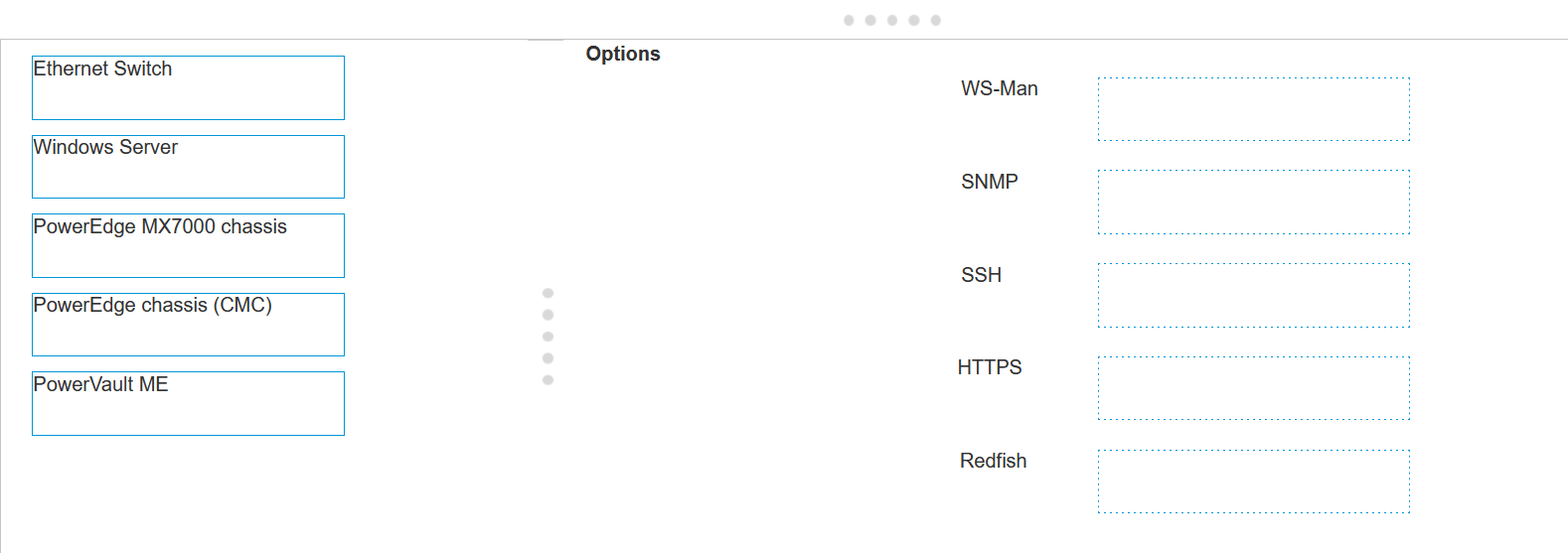
Answer:
None
Explanation:
Ethernet Switch - SNMP
Windows Server - WS-Man
PowerEdge MX7000 chassis - Redfish
PowerEdge chassis (iCMC) - HTTPS
PowerVault ME - SSH
Ethernet Switch: SNMP (Simple Network Management Protocol) is the standard protocol for network
management. It’s used for collecting information from, and configuring, network devices, such as
switches and routers.
Windows Server: WS-Man (Web Services-Management) is a protocol for managing servers and
devices. It’s particularly suited for Windows Servers as it’s built into the Windows Management
Framework.
PowerEdge MX7000 chassis: Redfish is a standard designed to deliver simple and secure
management for hardware platforms. Given the advanced features of the PowerEdge MX7000
chassis, Redfish is the appropriate protocol for discovery and management.
PowerEdge chassis (iCMC): HTTPS (Hypertext Transfer Protocol Secure) is used for secure
communication over a computer network within a web browser. It’s suitable for devices like the
PowerEdge chassis with an integrated Dell Remote Access Controller (iDRAC) that supports web-
based management.
PowerVault ME: SSH (Secure Shell) is a protocol for operating network services securely over an
unsecured network. It’s ideal for storage systems like PowerVault, which require secure data transfer.
Reference for these answers can be found in the Dell OpenManage documentation, which provides
detailed information on the management protocols supported by different Dell devices.
=========================
Comments
Question 4
What advantage does the IPMI discovery protocol have over SNMP?
- A. There is an added encryption layer with IPMI
- B. Discovery timeouts increase for SNMP
- C. IPMI allows for subsystem sensor monitoring
- D. No credentials are required when using IPMI
Answer:
C
Explanation:
IPMI (Intelligent Platform Management Interface) is a set of computer interface specifications for an
autonomous computer subsystem that provides management and monitoring capabilities
independently of the host system’s CPU, firmware, and operating system. One of the key advantages
of IPMI over SNMP (Simple Network Management Protocol) is its ability to monitor and manage
various subsystem sensors within the hardware.
While SNMP is widely used for network management and can gather data from various devices on
the network, it is not as specialized in sensor data collection as IPMI. IPMI provides more detailed
monitoring of system health and environment by allowing access to a broader range of sensor types
and data.
This includes temperatures, voltages, fans, power supplies, and more123
.
Moreover, IPMI operates independently of the operating system, which means it can function even if
the server’s OS fails or is unresponsive. This level of monitoring is crucial for maintaining system
stability and preventing downtime due to hardware issues.
Reference:
Dell EMC OpenManage SNMP Reference Guide1
Server Fault community discussions on Dell OpenManage and IPMI2
Spiceworks Community insights on Dell OpenManage monitoring3
=========================
Comments
Question 5
After onboarding a device, what are the recommended actions to apply a VLAN template with
OpenManage Enterprise?
- A. Create IOA template Configure VLAN settings Deploy Template on IOA
- B. Create VLAN template Configure VLAN settings Deploy Template on Modular Server
- C. Create server template Configure VLAN settings Deploy Template on Modular Server
- D. Create server template Configure VLAN settings Deploy Template on IOA
Answer:
B
Explanation:
Create VLAN Template: The first step is to create a VLAN template within OpenManage Enterprise.
This involves defining the VLAN ID and any associated settings such as name, description, and VLAN
type.
Configure VLAN Settings: Once the template is created, you need to configure the VLAN settings
according to your network design. This may include setting up access or trunk modes, allowed VLANs
on trunks, and other relevant settings.
Deploy Template on Modular Server: The final step is to deploy the VLAN template on the modular
server. This action applies the VLAN configuration to the server interfaces, ensuring that the server
can communicate on the specified VLANs.
The process of applying a VLAN template is documented in the OpenManage Enterprise Modular API
guide1
, which provides detailed instructions on how to apply VLANs to a template.
Additionally,
Dell’s support videos and documentation offer guidance on creating and deploying server templates
in OpenManage Enterprise2
.
=========================
Comments
Question 6
DRAG DROP
What are the steps required to restart a previously stopped Discovery Job in OpenManage
Enterprise?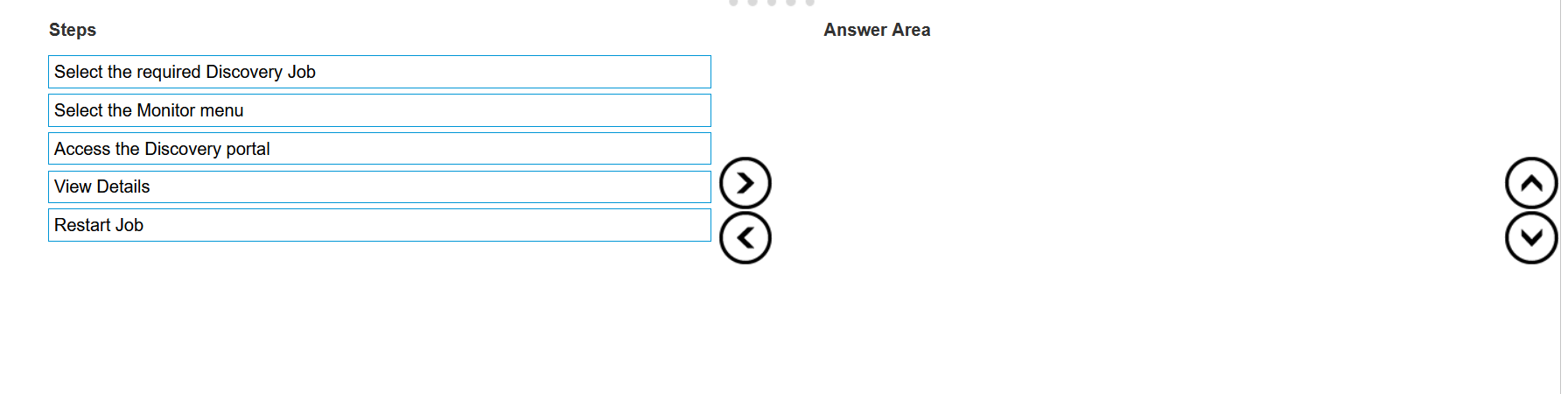
Answer:
None
Explanation:
The steps required to restart a previously stopped Discovery Job in OpenManage Enterprise are:
Select the required Discovery Job: Identify and select the Discovery Job that you wish to restart.
Select the Monitor menu: Navigate to the Monitor menu within the OpenManage Enterprise
interface.
Access the Discovery portal: Within the Monitor menu, find and access the Discovery portal.
View Details: In the Discovery portal, locate the specific Discovery Job and view its details.
Restart Job: Finally, use the option provided to restart the selected Discovery Job.
The process to restart a Discovery Job typically involves navigating through the OpenManage
Enterprise interface to locate the specific job and initiating a restart. The steps are based on standard
procedures for managing Discovery Jobs within the OpenManage Enterprise system. For detailed
instructions and best practices, refer to the official Dell OpenManage Enterprise User Guide, which
provides comprehensive guidance on managing Discovery Jobs, including starting, stopping, and
restarting jobs as needed.
=========================
Comments
Question 7
Which of the following OpenManage Enterprise appliance setting can only be configured in the Text
User Interface?
- A. DNS name
- B. Proxy settings
- C. SMB version
- D. NTP configuration
Answer:
C
Explanation:
The SMB version setting is one that can only be configured in the Text User Interface (TUI) of the
OpenManage Enterprise appliance. The TUI provides a command-line interface for the configuration
and management of various settings that are not available in the graphical user interface (GUI).
Here’s why the SMB version is typically configured in the TUI:
DNS name and NTP configuration are basic network settings that are usually configurable via the GUI
for ease of access and management.
Proxy settings may also be available in the GUI, as they are often required for the appliance to
communicate with external services through a proxy server.
SMB version, on the other hand, pertains to the Server Message Block protocol, which is used for
network file sharing. Since SMB settings can involve complex configurations and security
considerations, they are often managed in the TUI to provide a more controlled environment for
changes.
The use of the TUI for such configurations is documented in the Dell EMC OpenManage Enterprise
User’s Guide, which details the procedures for accessing and using the TUI for various system
settings1
.
=========================
Comments
Question 8
An OpenManage Enterprise appliance is configured with two NICs to connect to multiple networks.
When trying to add a firmware catalog on a file share using the secondary adapter, the file share is
only accessible by IP address and not by name.
What could cause this issue?
- A. The OME appliance does not have a DNS domain configured.
- B. DNS name resolution requires enabling IPv6 in the adapter settings.
- C. OME can only resolve DNS names using its primary network interface.
- D. The firmware catalog does not contain any updates that are applicable to managed systems.
Answer:
C
Explanation:
The issue described is likely due to the OpenManage Enterprise (OME) appliance’s limitation in
resolving DNS names through its secondary network interface. Typically, an OME appliance is
configured to use its primary network interface for DNS name resolution. If a firmware catalog on a
file share is only accessible by IP address and not by name when using the secondary adapter, it
suggests that DNS queries are not being routed or resolved through the secondary interface.
This behavior can be attributed to the network configuration and DNS settings within the OME
appliance. In many systems, the primary NIC is set up with the necessary DNS configuration to
resolve domain names, while additional NICs may not have the same settings or may be intended for
different purposes, such as management or backup networks.
For more detailed information on configuring network settings and DNS resolution in OpenManage
Enterprise appliances, including how to manage multiple NICs, you can refer to the official Dell
documentation and support forums12
.
=========================
Comments
Question 9
An administrator has configured a server to meet company-mandated BIOS settings and captured
these settings in a Deployment Template.
They are trying to apply these settings to a new server. When the Template Deployment wizard is
run, the server is not listed as a possible target.
Which of the following could cause this issue?
- A. The new server has multiple network cards.
- B. The new server does not have the required license.
- C. The new server is not part of the bare metal pool.
- D. A template can only be deployed to the server it is captured from.
Answer:
C
Explanation:
When deploying a Deployment Template in OpenManage Enterprise and the target server is not
listed, it could be due to the server not being part of the bare metal pool. The bare metal pool is a
collection of servers that have been discovered but not yet configured or assigned to any specific
group or task within OpenManage Enterprise. If a server is not part of this pool, it may not be
recognized as a potential target for template deployment.
Here are the steps and considerations that might be involved in resolving this issue:
Verify Server Discovery: Ensure that the new server has been discovered by OpenManage Enterprise
and is listed in the inventory.
Check Bare Metal Pool Membership: Confirm that the server is part of the bare metal pool, which is a
prerequisite for deploying templates to unconfigured servers.
Review License Requirements: Make sure that the server has the necessary OpenManage Enterprise
Advanced or Advanced Plus license installed, as this is required for deploying certain templates1
.
Template Compatibility: Ensure that the Deployment Template is compatible with the new server’s
model and configuration.
For detailed guidance on creating and deploying server templates, including troubleshooting steps
for when servers are not listed as targets, you can refer to the official Dell EMC OpenManage
Enterprise User’s Guide1 and support videos2
.
=========================
Comments
Question 10
Which status is shown if you onboard a server with an account that lacks administrative privileges?
- A. Monitored
- B. Managed with alerts
- C. Managed
- D. Monitored with limited actions
Answer:
A
Explanation:
In Dell OpenManage Enterprise, when a server is onboarded using an account that lacks
administrative privileges, the status shown is “Monitored.” This status implies that the server has
reduced device permissions compared to the “Managed” status, which would require administrator
privileges.
Here’s a detailed explanation:
Monitored: This status indicates that the server can be contacted and discovered by OpenManage
Enterprise, but the range of interactions is limited due to the lower-privileged credentials
provided.
The server’s operational status can be viewed, but management tasks such as power
control or firmware updates cannot be executed1
.
Managed with alerts: This status would imply that the server is fully managed and that alerts can be
configured and received, which requires administrative privileges.
Managed: This status is assigned to servers that are fully managed with administrative credentials,
allowing for a full range of management tasks.
Monitored with limited actions: While this status is not explicitly mentioned in the provided search
results, it would suggest a similar level of access as “Monitored” but with some additional limited
actions available.
The distinction between these statuses is important for IT administrators who need to decide the
level of access and control they require over the servers. For servers that only need to be monitored
without full management capabilities, providing lower-privileged credentials is a common practice.
For more information on the implications of onboarding servers with different privilege levels and
the resulting statuses, you can refer to the Dell OpenManage Enterprise technical documentation
Comments
Page 1 out of 5
Viewing questions 1-10 out of 54
page 2