Question 1
The data analytics team confirms that a CSV file of high-intent customers has been extracted from
the Enterprise Data Warehouse and placed on the Adobe SFTP server ready for use in a trial
campaign. The workflow consists of a file collector, data loading activity, and an enrichment to
reconcile customers using recipient IDs. A business practitioner runs the workflow and an error
occurs during the enrichment activity.
What could be causing the error?
- A. The sequence of activities is incorrect and requires attention
- B. The Data loading activity has not been configured to format the recipient ID field in the file
- C. The Data loading activity has not been configured with a representative sample file
- D. The Recipient IDs in the file do not exist in the target schema
Answer:
B
Explanation:
During a workflow, if an error occurs during the enrichment activity, it often indicates a mismatch or
configuration issue with the data being processed. If the data loading activity has not been
configured correctly to format the recipient ID field according to the expected format in the Adobe
Campaign database, the enrichment activity will fail to reconcile the customers. This is because the
enrichment relies on matching the formatted recipient IDs in the workflow with those in the target
schema. If there's a formatting discrepancy, the process cannot successfully match and enrich the
data, leading to an error.
Reference: This explanation is derived from general knowledge of data integration and workflow
processes in systems like Adobe Campaign Classic, where data loading and enrichment activities are
key components of campaign workflows.
Comments
Question 2
A business team is sending out a promotional email and would like to automatically send a follow-up
email two hours later to the recipients who did not open the initial email.
What are the workflow activities needed to do this?
- A. Query, EmaiM. Wait, Fork, Email2, End
- B. Query, Email!, Wait, Enrichment, Email2, End
- C. Query, Emaill. Wait, Update Date, Email2, End
- D. Query, Email!, Wait, Segmentation, Email2, End
Answer:
B
Explanation:
To send a follow-up email two hours later to the recipients who did not open the initial email, the
workflow activities needed are:
Query: Create a query to identify the recipients who did not open the initial email.
Email!: Create an email delivery activity to send the initial email.
Wait: Add a wait activity to wait for two hours.
Enrichment: Add an enrichment activity to update the delivery logs with the delivery status.
Email2: Create a second email delivery activity to send the follow-up email.
End: Add an end activity to end the workflow.
https://www.indeed.com/career-advice/interviewing/email-follow-ups
To set up a workflow that sends a follow-up email to recipients who did not open the initial email,
the following steps are necessary: First, a Query activity to identify the recipients, followed by the
initial Email1 activity. After the first email is sent, a Wait activity delays the workflow for two hours.
Next, an Enrichment activity is used to determine which recipients did not open the Email1, likely by
checking open status from the tracking logs. Finally, the second email (Email2) is sent to those
unresponsive recipients, and the workflow ends. The Enrichment activity is essential here as it helps
to refine the target segment based on the behavior (email opens) related to the first email.
Reference: The process is based on common email marketing practices and the use of workflows in
marketing automation platforms like Adobe Campaign Classic, where Wait and Enrichment activities
are standard components for managing time-based actions and recipient behavior.
Comments
Question 3
An Adobe Campaign business practitioner is getting the following error in a workflow built by
someone whose access for campaign instance has been revoked.
Error from workflow:(Campaign jobs(operationMgt))
BAS-010003 Unable to complete operation in current status.
WKF-560044 Error while sending notification with delivery template 'notify supervisor'
Please refer to the delivery log ID 00000 for more information (object associated with the
workflow task).
After analyzing the error, the practitioner understands that the xml of the workflow below needs to
be updated:
process forecasted="0" login="[email protected]" priority="0M processState="20" startState="07
What change is needed to remove the error?
- A. Replace the login with an active operator "user id + email"
- B. Replace the login with an active operator email
- C. Replace the login with an active operator "user id + name'
- D. Replace the login with an active operator name
Answer:
A
Explanation:
Adobe Campaign allows you to create and edit workflows using a graphical interface or an XML
editor.
You can also view and modify the properties of a workflow, such as its name, label,
description, priority and login2
.
The login property of a workflow indicates the operator who created or scheduled the workflow. It is
used for security and notification purposes.
If the operator’s access for the campaign instance has
been revoked, then the workflow may fail or generate errors3
.
To remove the error in your workflow, you need to replace the login property with an active
operator’s user ID and email address. The user ID and email address are separated by a colon (:) in
the XML code. For example: login=“1234:[email protected]”.
The error message suggests that there is an issue with the workflow's ability to send notifications
using the 'notify supervisor' template. This is often linked to the operator's login credentials tied to
the workflow, which might now be invalid due to the access revocation. The XML snippet indicates
the login information that needs to be updated. Replacing the 'login' attribute with the user ID and
email of an active operator (one who has the appropriate permissions and whose access to the
campaign instance has not been revoked) should correct the error. The login usually requires both
user ID and associated email to correctly identify and authenticate the user within the system.
Reference: This resolution approach is informed by typical administrative and operational
troubleshooting in campaign management systems, where user access and permissions are critical
for executing workflows.
Comments
Question 4
A business practitioner is creating three different activities:
1) Targeting a recipient with a specific email domain
2) Targeting recipients that are over 30 years old
3) Targeting deliveries with a delivery status equal to failed
The business practitioner attempts to combine the three results using the "Union" activity, and they
receive the following error: "The document types of inbound events are incompatible (step 'Union').
Unable to perform the operation."
What is the cause for the error in the union activity?
- A. Three different activities have a different number of rows and therefore cannot be combined together
- B. Different types of the inbound transitions; email domain and delivery status are strings and age is a numerical value
- C. The business practitioner forgot to configure the primary Union set of data in the activity
- D. Inbound transitions containing populations with heterogeneous targeting dimensions
Answer:
D
Explanation:
The error in the Union activity is caused by D. Inbound transitions containing populations with
heterogeneous targeting dimensions
.
The Union activity is used to combine two or more populations. The inbound transitions must
contain populations with the same targeting dimensions. In this case, the three different activities
have different targeting dimensions, which are email domain, age, and delivery status. Therefore, the
Union activity cannot combine the three results together
.
https://experienceleague.adobe.com/docs/campaign-classic/using/automating-with-workflows/targeting-activities/union.html?lang=en
The error in the 'Union' activity is caused by the attempt to combine results from activities with
different targeting dimensions. The Union activity requires that all incoming transitions (the
populations to be combined) have the same schema structure. In this case, targeting recipients
based on email domain and age involves recipient attributes, which are usually part of the same
recipient schema. However, targeting based on delivery status involves attributes from the delivery
schema. Since these schemas have different structures and fields, the Union activity cannot combine
them directly without configuration that reconciles these differences.
Reference: The answer is based on the principles of database schema structures and the functionality
of union operations within data processing workflows, as typically encountered in campaign
management systems like Adobe Campaign Classic.
Comments
Question 5
An insurance company wants to send an email delivery labeled "New Offers" to all the customers
with Car and PackageA to inform them about new offers that they can purchase. After one week they
want to send a follow-up to those that did not open the delivery.
How would the business practitioner achieve that?
A.
Product (delivery/@product) = "Car" and
Package (delivery/package) = "PackageA" and
Label (delivery/@label) = "New Offers" and
Type (url/type) <> "Open"
B.
Product (delivery/@product) = "Car" and
Package (delivery/package) = "PackageA" and
Label (delivery/@label) = "New Offers" and
Tracking Logs (trackingLog): do not exist
C.
Product (delivery/@product) = "Car" and
Package (delivery/package) = "PackageA" and
Label (delivery/@label) = "New Offers" and
Tracking Logs (trackingLog): exist such as: "Not Open"
D.
Product (delivery/@product) = "Car" and
Package (delivery/package) = "PackageA" and
Label (delivery/@label) = "New Offers" and
Type (url/type) = "Not Open*
Answer:
B
Explanation:
Adobe Campaign allows you to create queries that filter recipients based on various criteria, such as
their profile attributes, delivery properties and tracking logs.
You can use queries to segment your
audience and target specific groups of recipients for your campaigns2
.
To achieve the requirement of sending a follow-up email delivery to those customers who did not
open the previous delivery labeled “New Offers”, you need to create a query that filters recipients
based on their product, package, delivery label and tracking logs. You need to use the Tracking Logs
(trackingLog) dimension and check if it does not exist for each recipient. This means that there is no
tracking information for opening or clicking on links in the previous delivery
.
https://experienceleague.adobe.com/docs/campaign-classic/using/sending-messages/tracking-messages/accessing-the-tracking-logs.html?lang=en
For the insurance company to send a follow-up email to customers who did not open the "New
Offers" delivery, the practitioner needs to identify customers who have both 'Car' and 'PackageA' and
who were sent the initial email but did not open it. The correct logic would be to select recipients
based on product and package criteria and then check whether there is an absence of tracking logs
for opens, indicating that the email was not opened. The expression "Tracking Logs (trackingLog): do
not exist" serves this purpose by filtering out all recipients who have an open event in their tracking
logs for the specified delivery.
Reference: This explanation is derived from the standard practice of tracking recipient interactions in
email marketing campaigns, where tracking logs are used to determine opens, clicks, and other
recipient actions.
Comments
Question 6
A business practitioner needs to perform an A/B test, sending test variant A to 10% and test variant B
to 10%, after a period of 2 hours. The campaign workflow should automatically assess the higher-
performing delivery based on the best open and clickthrough ratio and deploy the winning variant to
the remaining 80% of the target recipient population.
What is the most appropriate delivery indicator to use to ensure the winning delivery is selected?
- A. indicators/@recipientClickRatio
- B. indicators/@amount
- C. indicators/@estimatedRecipientOpenRatio
- D. indicators/(©reactivity
Answer:
A
Explanation:
For an A/B test focusing on both open and click-through ratios, the most comprehensive indicator to
determine the winning variant is the recipient click ratio. This indicator takes into account not just
the number of clicks but also how those clicks are spread across the number of recipients, giving a
more accurate measure of engagement. The open ratio would only provide data on how many
recipients opened the email, but not on how they interacted with it, making the click ratio a better
measure of actual engagement and interest in the content of the email, which is essential for
determining the most effective delivery.
Reference: The answer is informed by general marketing practices in A/B testing and the use of
performance indicators to determine the success of email campaigns.
Comments
Question 7
During development or testing, what are two ways a business practitioner can avoid leaving a
workflow in a paused state? (Choose two.)
- A. Right click on the workflow palette and choose "Purge History"
- B. Add a Stop activity to the final transition of a workflow
- C. Under Admin/Workflows, select "stop all workflows"
- D. Click on the Stop icon on the workflow task bar
- E. Add an End activity to the final transition of a workflow
Answer:
B, E
Explanation:
To avoid leaving a workflow in a paused state during development or testing, adding a Stop activity
ensures that the workflow is forcibly stopped after all the activities have been processed.
Additionally, adding an End activity at the end of a workflow is a standard practice for defining a clear
endpoint, after which the workflow will not proceed. Both these activities help prevent workflows
from remaining in an unintended paused state. It's important to use these activities as they are
designed to provide a clean termination of the workflow's execution.
Reference: These recommendations are based on standard practices within workflow management
in automation systems like Adobe Campaign Classic, where Stop and End activities are common
features.
Comments
Question 8
A business practitioner wants to create a cross delivery workflow in a campaign so that customers
who are subscribed to a newsletter would receive a promo in an email, then in an SMS.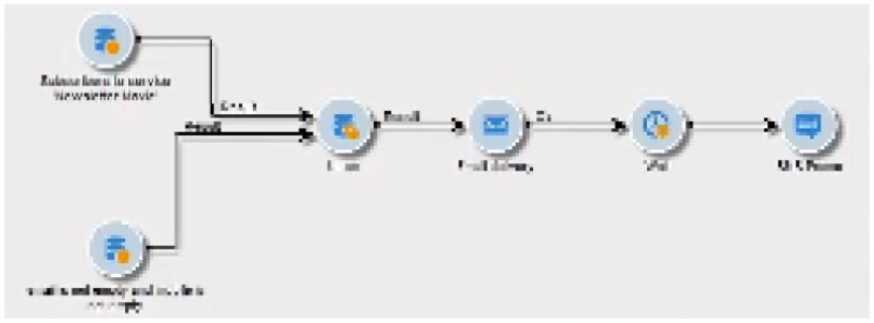
What should the business practitioner do to ensure that this workflow is cross delivery?
- A. Check "Generate an outbound transition" in the workflow execution settings of the mobile delivery
- B. Check "Generate inbound/outbound transitions" in the workflow execution settings of both email and mobile deliveries
- C. Check "Generate an outbound transition" in the workflow execution settings of the email delivery
Answer:
C
Explanation:
To create a cross-delivery workflow where an email is followed by an SMS, it's important that the
workflow can pass the target recipients from the email delivery to the SMS delivery. Checking the
"Generate an outbound transition" option in the workflow execution settings of the email delivery
creates an output population that can be used as the input for the subsequent SMS delivery activity.
This ensures that the recipients who received the email are then considered for the SMS, maintaining
the flow of communication across the different delivery channels.
Reference: This process aligns with cross-channel campaign management, where the flow of the
recipient data from one delivery channel to another is managed within a campaign workflow.
Comments
Question 9
A Campaign business practitioner creates populations in four queries: A, B, C, and D. Campaign
requirements state that the final targeting population can include population A or C. Anyone in both
population B and D must be excluded from the final targeting population.
How should the practitioner configure the workflow?
A.
Union A and C
Intersect B and D
Exclude results of Intersection BD from Union AC
B.
Union A and C
Union B and D
Intersect results of AC with union results BD
Use the intersection's complement as targeting population
C.
Union A and C
Union B and D
Exclude results of union BD from results of union AC
D.
Union A and C
Intersect B and D
Exclude results of intersection BD from union AC
Use the exclusion's complement as targeting population
Answer:
A
Explanation:
To meet the campaign requirements, the practitioner should first combine populations A and C using
a Union activity, which will create a population that includes anyone from either group. Then, to
identify those who should be excluded, populations B and D should be combined using an Intersect
activity. This will identify recipients who are in both B and D. Finally, the Exclude activity should be
used to remove anyone found in the intersection of B and D from the union of A and C. This results in
a final targeting population that includes anyone from A or C but excludes anyone who is also in both
B and D.
Reference: The configuration is based on set theory and logical operations commonly used in
database querying and manipulation, which are integral to creating targeting populations in
campaign management systems like Adobe Campaign Classic.
Comments
Question 10
A client has requested that a business practitioner build a workflow to send an email every day at
5:00 pm to everyone who made a purchase in the previous 24 hours.
Which workflow activities are necessary to meet this requirement?
- A. Query activity, Cell activity. Delivery activity
- B. Scheduler activity. Delivery activity
- C. Incremental Query activity, Delivery activity
- D. Query activity, Intersection activity Delivery activity
Answer:
C
Explanation:
The requirement is to send an email every day at a specific time to individuals who have made a
purchase in the last 24 hours. To achieve this, an Incremental Query activity is suitable because it
allows the workflow to query the database for records that have changed (in this case, made a
purchase) since the last execution. This activity should be scheduled to run daily. The Delivery activity
is then used to send the email to the population identified by the Incremental Query. There's no
need for a Cell activity as there's no mention of segmenting the population further, and no
Intersection activity is required as there's no secondary condition to satisfy.
Reference: This is based on the functionality of Incremental Query activities within Adobe Campaign
Classic, which are designed to capture data changes over a period of time for targeted
communications.
Comments
Page 1 out of 4
Viewing questions 1-10 out of 50
page 2